 OpenEmux Manual
Using OpenEmux
This manual walks through OpenEmux one part at a time, from installing it to the last switch in Settings. Each screenshot frames the part the text is talking about. Click any screenshot to see it full size.
What OpenEmux is
OpenEmux is a free and open-source emulation frontend. It keeps the games you already have organized by console, with cover art, and starts them with the controls and shaders already set. The emulation itself is done by RetroArch and its libretro cores; OpenEmux takes care of what is around it, so you do not have to learn RetroArch's menus before playing.
OpenEmux does not come with games, ROMs or BIOS files. You add your own.
Linux is OpenEmux's main platform. Windows is supported too, with a build that is still in beta.
A tour of the window
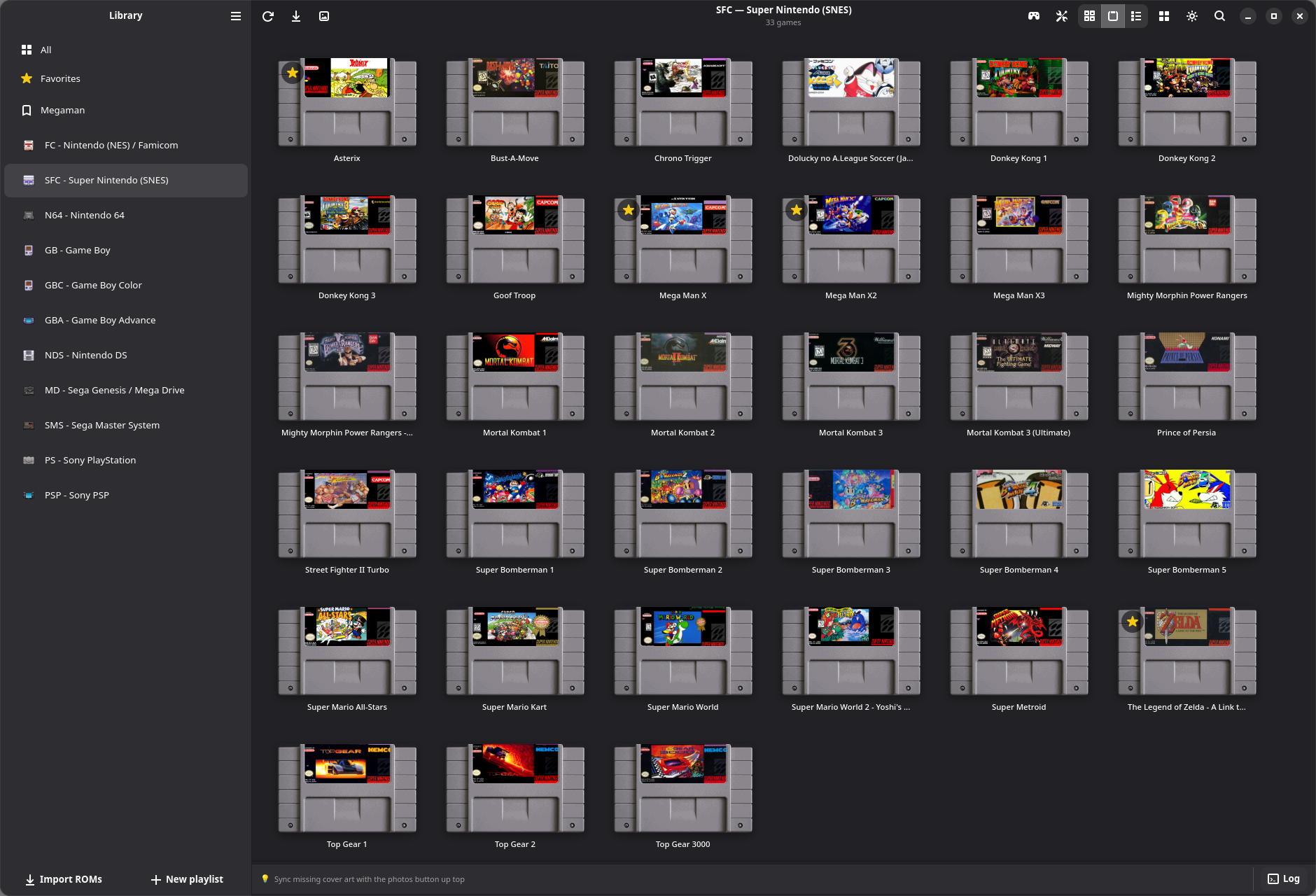
The sidebar
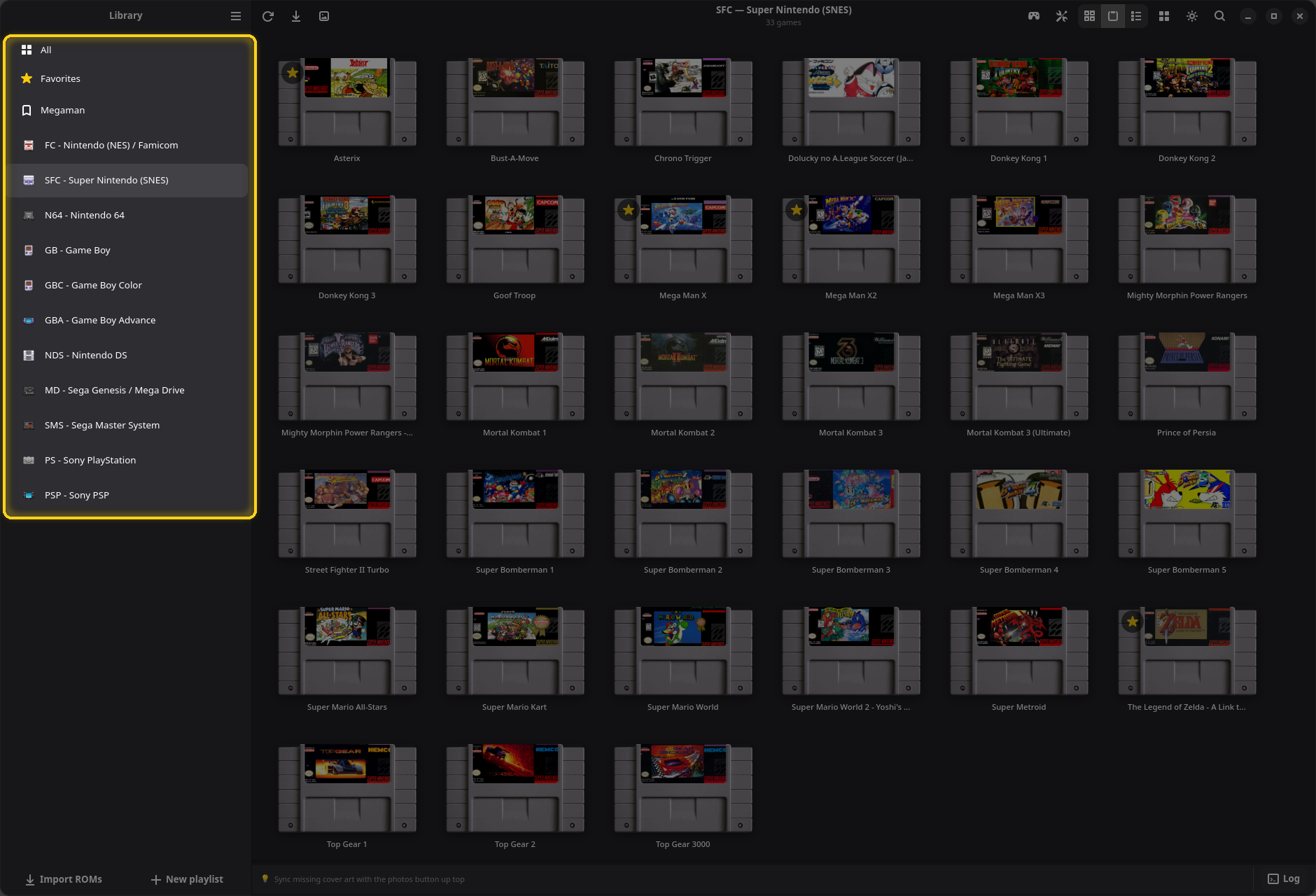
The sidebar lists the pages of your library, top to bottom:
- All: every game, grouped by console.
- Favorites: the games you starred. The row only appears once something is starred. See Favorites.
- Your playlists, if you made any. Here, Megaman. See Playlists.
- One row per console that has games, written as its short id and its name, like SFC - Super Nintendo (SNES).
Console and playlist rows have a menu: right-click them, or hover and click the ⋮ button. Console rows can also be dragged to change their order.
The header buttons
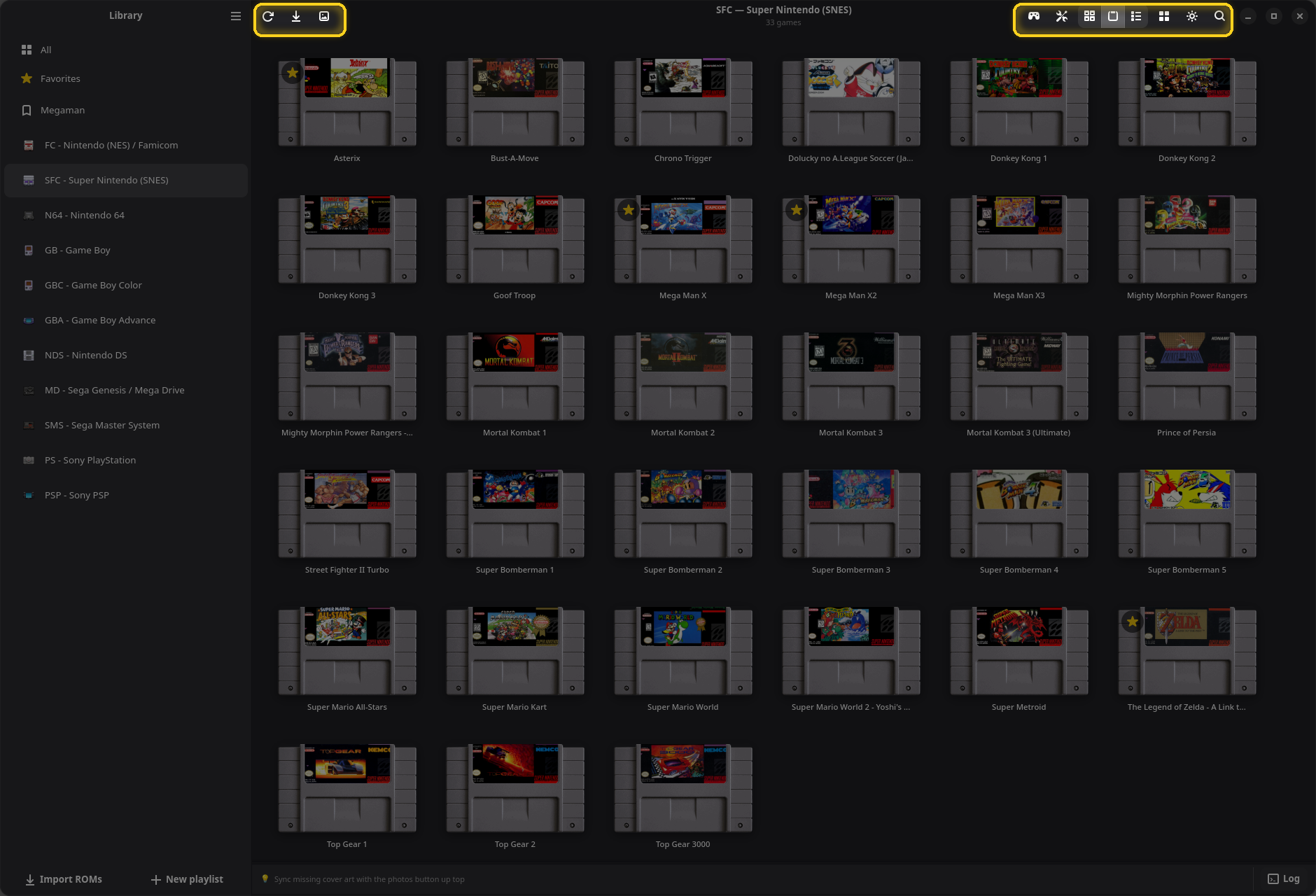
| Button | What it does |
|---|---|
| ☰ Main Menu (next to "Library") | Settings, Keyboard Shortcuts, Welcome, Report a Bug… and About OpenEmux. |
| ⟳ Reload visible page | Rescans the console on screen, or every console on All. Same as F5. |
| ⤓ Import ROMs | Opens the file picker to add games. See Importing games. |
| 🖼 Sync covers | Downloads missing artwork. See Syncing cover art. |
| 🎮 Controller settings for this console | Opens Settings on the Input page. Only shown on a console's own page. |
| 🛠 Settings | Opens Settings. Same as Ctrl+,. |
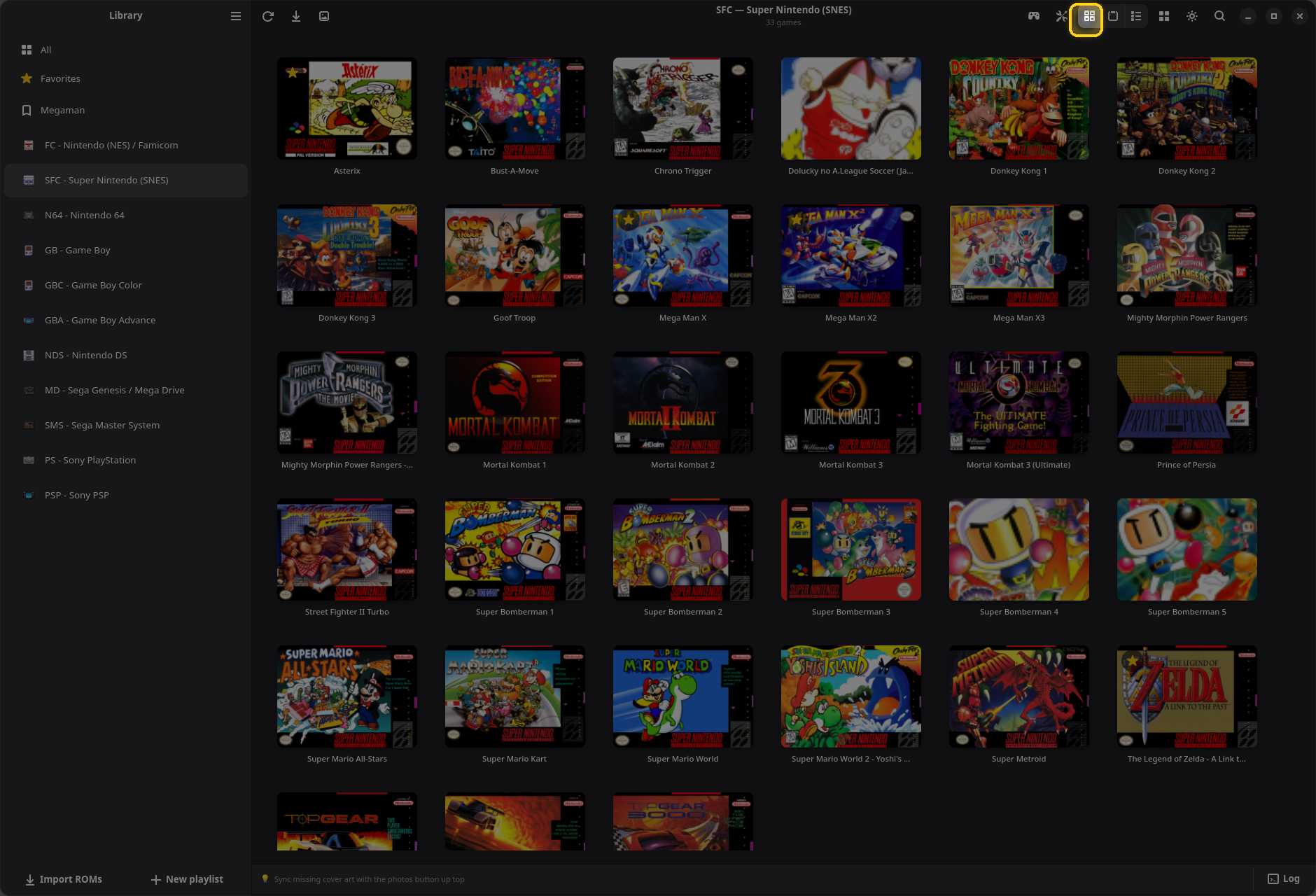
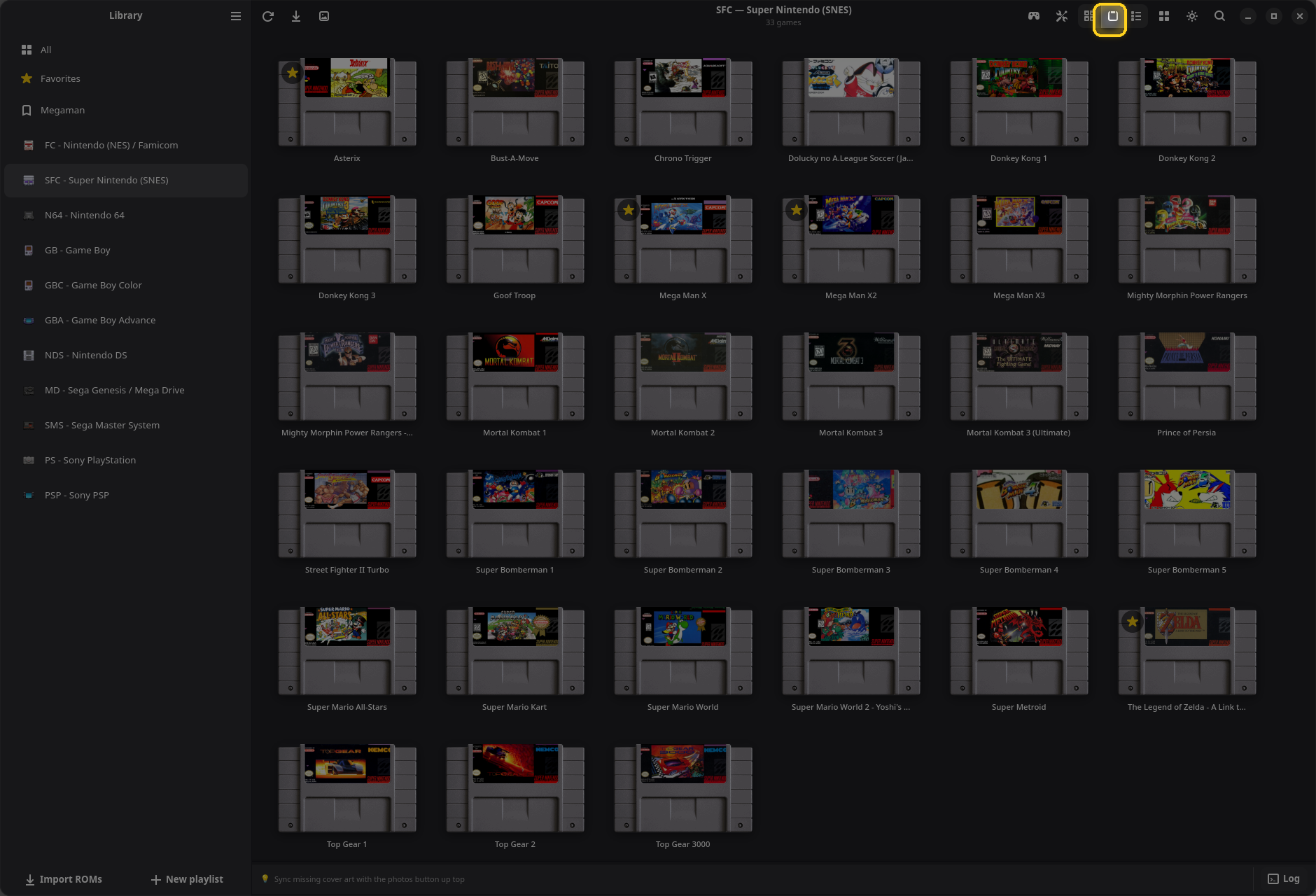
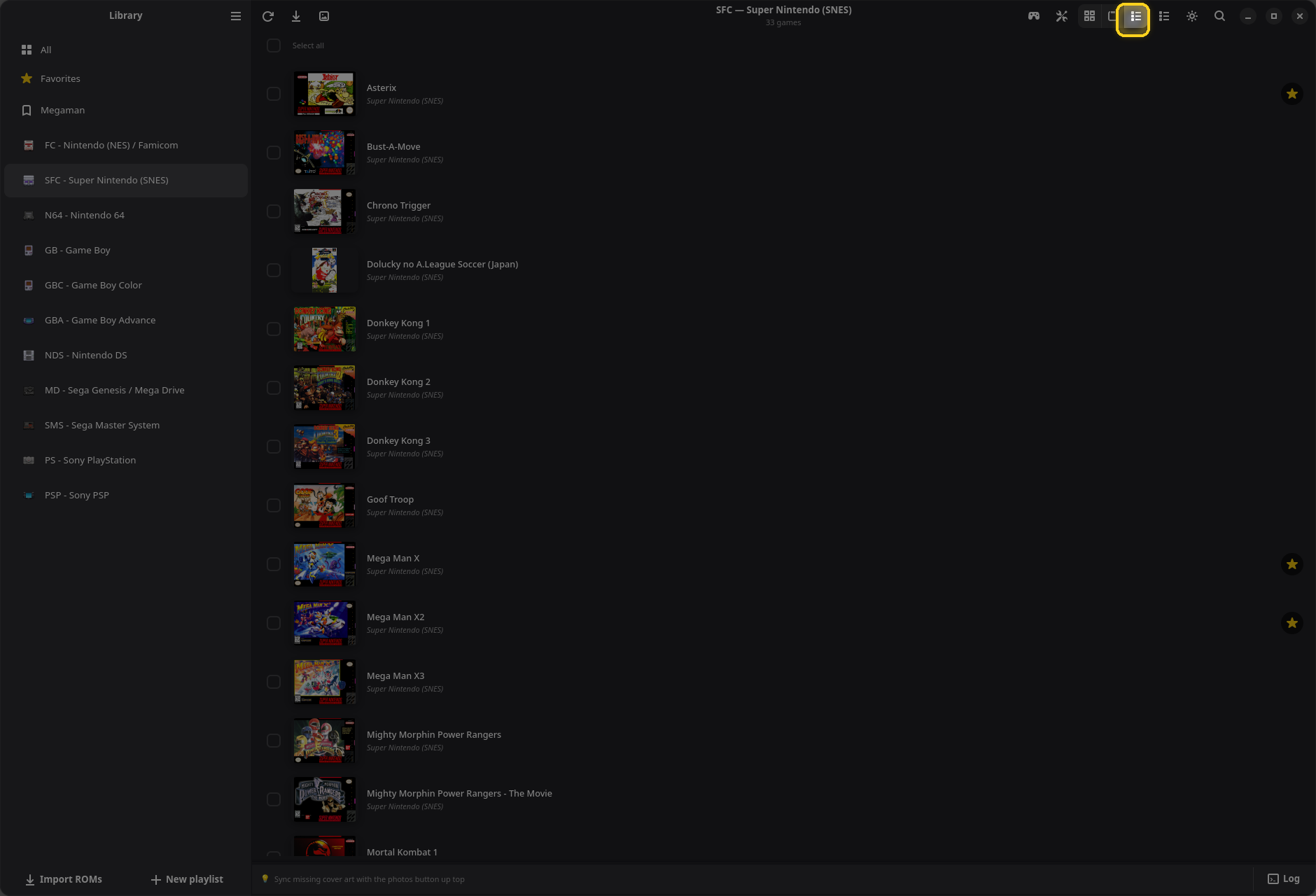
| Three linked buttons | Cover Grid, Cartridge Grid and Compact List. See Views. |
| ▦ View mode | The layout menu: view, sorting, filter and thumbnail size for this page. |
| ☀ / ☾ | Switches between the dark and the light theme. |
| 🔍 Search | Filters the page on screen. See Search. |
The bottom of the window

- Import ROMs and New playlist sit at the foot of the sidebar.
- The tips bar shows a short tip that changes every few seconds. When you move around with the keyboard or a gamepad, it also shows which keys do what.
- Log opens the log panel. A red number on it counts errors. See When something goes wrong.
A game card
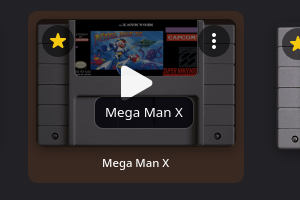
Pointing at a game shows three controls:
- the star at the top left marks it as a favorite;
- the ⋮ at the top right opens the game's menu;
- the play button in the middle starts it. A single click anywhere on the card does the same.
Right-clicking a card also opens its menu.
The main menu and the shortcuts
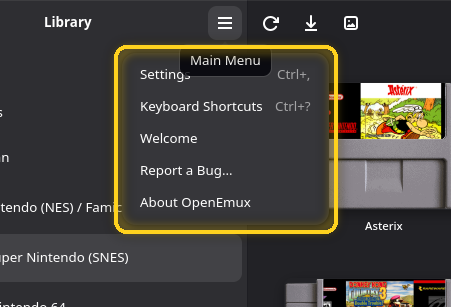
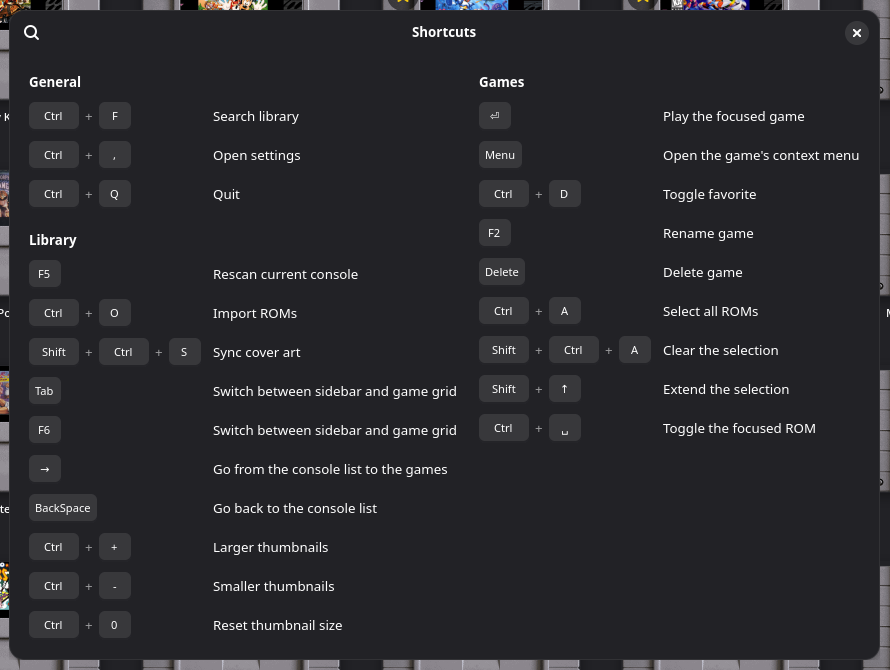
Keyboard Shortcuts (Ctrl+?) lists the keys of the library. They are also in Shortcuts and hotkeys.
The welcome tour
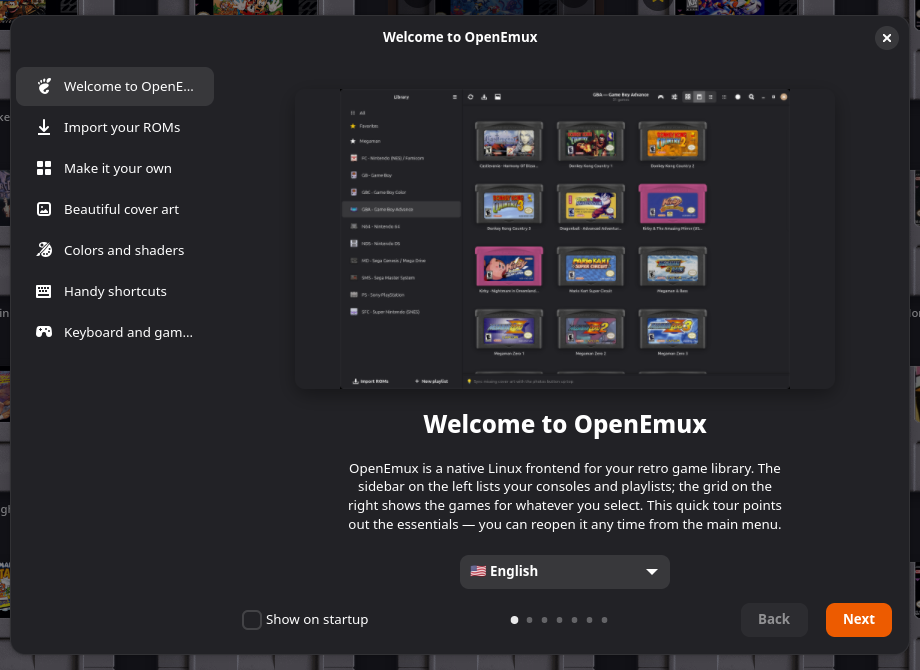
The first time OpenEmux opens, a short tour walks through its main features: importing, layouts, cover art, colors and shaders, shortcuts, and keyboard and gamepad. You can pick the interface language on its first page. Untick Show on startup to stop it from opening by itself; it stays available from the main menu, under Welcome.
Installing OpenEmux
Every release is on the Releases page. Pick the format that fits your system; all of them run the same app.
AppImage (any Linux distro)
One file that runs on most distributions without installing anything:
chmod +x OpenEmux-x86_64.AppImage
./OpenEmux-x86_64.AppImage
If your system has no FUSE, start it with APPIMAGE_EXTRACT_AND_RUN=1 in front of the
command.
Debian / Ubuntu (.deb)
sudo apt install ./openemux_*_amd64.debNeeds Ubuntu 24.04 LTS or newer, or a Debian of the same age.
Fedora (.rpm)
sudo dnf install ./openemux-*.x86_64.rpmNeeds Fedora 40 or newer.
Flatpak
Sandboxed, and updated together with your other Flatpaks:
flatpak install -y flathub org.libretro.RetroArch
flatpak remote-add --if-not-exists --no-gpg-verify \
  openemux https://guilhermefeitosa66.github.io/openemux-flatpak/repo
flatpak install -y openemux io.github.guilhermefeitosa66.OpenEmux
Updates then arrive with flatpak update. A single-file .flatpak bundle is on the
Releases page too.
Windows (beta)
Both Windows builds carry GTK 4, the Python runtime and RetroArch itself, so there is nothing else to install. They need Windows 10 or 11, 64-bit.
- Installer,
OpenEmux-*-setup.exe: installs for your user only, so it does not ask for administrator rights. The builds are not code-signed yet, so SmartScreen warns about them; More info → Run anyway gets past it. - Portable,
OpenEmux-*-windows-x86_64.zip: unzip it anywhere and runOpenEmux.exefrom theOpenEmux\folder inside. Useful on a USB stick or a machine where you cannot install software.
The Windows build is new. If something misbehaves, please open an issue.
Verifying a download
Every release has a SHA256SUMS file. Put it next to what you downloaded and run:
sha256sum -c SHA256SUMS --ignore-missingOK means the file is exactly what was published. Anything else means it is damaged or was
changed; do not run it. On Windows, PowerShell prints the hash and you compare it with the matching line in
SHA256SUMS:
Get-FileHash .\OpenEmux-*-setup.exe -Algorithm SHA256The first launch
The first time it runs, OpenEmux shows a Preparing first-time setup window while it creates its configuration, makes the ROMs, BIOS and covers folders, prepares input profiles and playlists, and downloads the libretro cores your consoles need. That usually takes about ten seconds; the rest of the cores keep downloading in the background while you use the app, and a banner under the header shows their progress.
Your settings live in ~/.openemux/, and your games in ~/games/roms/, one folder
per console.
Building from source
make bootstrap && make runSee the build instructions for the details.
Importing games
OpenEmux plays the ROM files you already have. Importing copies them (or links them) into the ROMs folder, one sub-folder per console, and adds them to the library.
Import ROMs
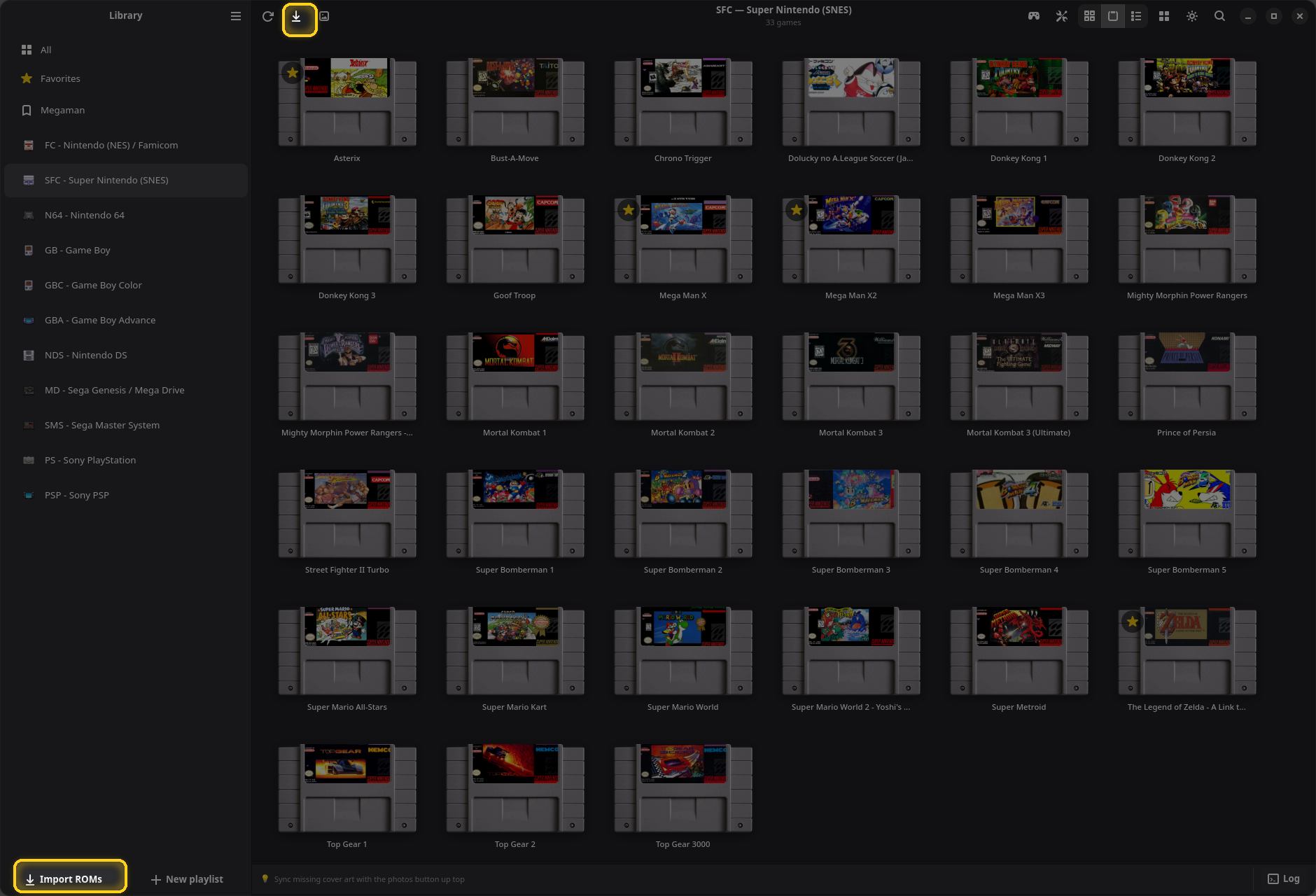
Click Import ROMs at the foot of the sidebar or the ⤓ button in the header, or press Ctrl+O. A file picker opens; you can select several files at once.
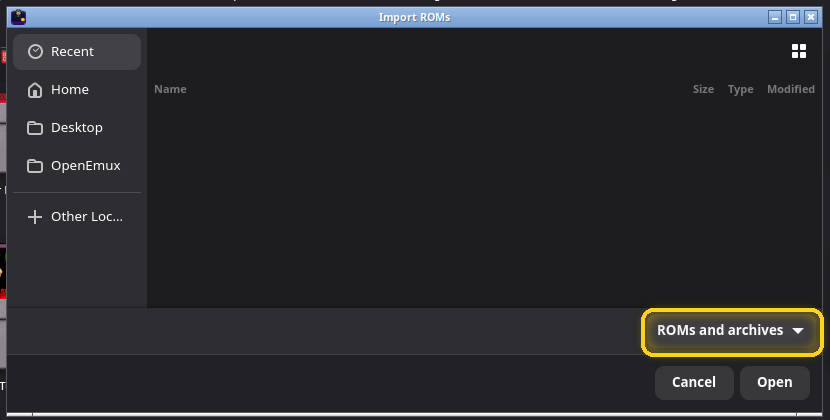
The ROMs and archives filter shows only the files OpenEmux knows how to import,
including .zip archives. When the import is done, a message says how many games came in and how
many files were skipped, and OpenEmux looks for artwork for the new games.
Drag and drop
You can also drop files, or whole folders, anywhere on the window. While you drag, a banner says Drop the files here to import them. Folders are searched all the way down.
Which console?
OpenEmux decides the console from the file extension (.sfc is a Super Nintendo game,
.gba a Game Boy Advance one, and so on). Two dialogs can come up along the way:
- When you import from All, Favorites or an empty library, it asks Which console? first, with Detect automatically selected. Leave it on that unless you want to force every file onto one console.
- When an extension is shared by several consoles, like
.binor.iso, it asks once per extension, with one button per possible console. The most likely one comes first.
The ROMs folder
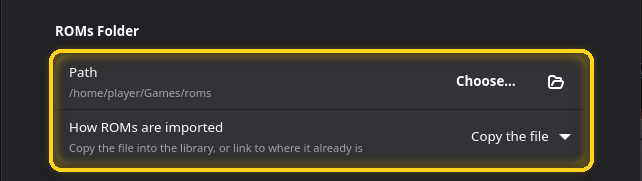
- Path is where the library lives. Choose… points it at another folder; the folder icon opens it in your file manager.
- How ROMs are imported chooses between Copy the file (the default: the original stays where it was and the library gets its own copy) and Link to the original (no copy; the library points to where the file already is, so moving or deleting the original breaks the game).
You can also put files into the console folders yourself, for example
~/games/roms/SFC/, and rescan.
Rescanning

The library is scanned every time OpenEmux starts. To pick up changes made outside the app, use ⟳ in the header (F5), Rescan this console in a console's menu, or Scan ROMs in Settings → Library, which lets you pick one console or all of them.
Syncing cover art
OpenEmux downloads two kinds of artwork: covers (the box art) and labels (the art on the cartridge sticker, used by the cartridge view). It only fetches what is missing; art you already have is left alone.
Sync covers

Click 🖼 Sync covers in the header, or press Ctrl+Shift+S. On a console's page it syncs that console; anywhere else it syncs the whole library. A banner under the header shows the progress, with a Cancel button, and covers appear as they arrive.
The same action is in a console's menu (Sync covers), in the bar that appears when several games are selected, and in Settings → Library → Maintenance, where you choose the console first.
Where artwork comes from
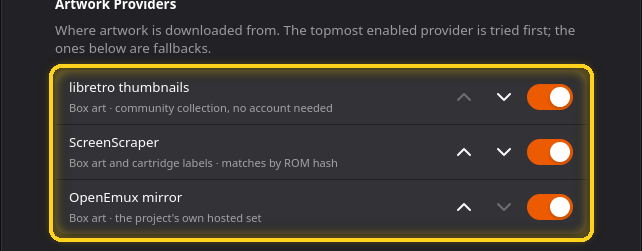
Three sources are tried in order, top first; the ones below are fallbacks. Each row has arrows to move it up or down and a switch to turn it off.
- libretro thumbnails: box art from the community collection. No account needed.
- ScreenScraper: box art and cartridge labels, matched by the ROM's hash, so it finds games even when the file name is unusual.
- OpenEmux mirror: box art from the project's own set.
ScreenScraper account
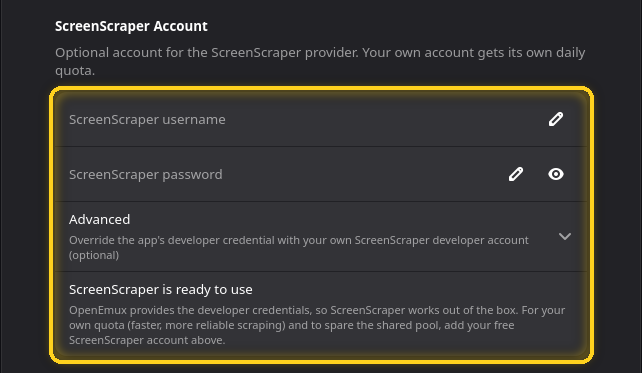
ScreenScraper works without an account: OpenEmux ships with developer credentials and a shared quota. A free ScreenScraper account of your own gets its own daily quota, which is faster and more reliable for large libraries. Fill in ScreenScraper username and ScreenScraper password. Advanced holds a developer ID and password, which you only need if you have your own developer account.
Managing cover art
Games without art
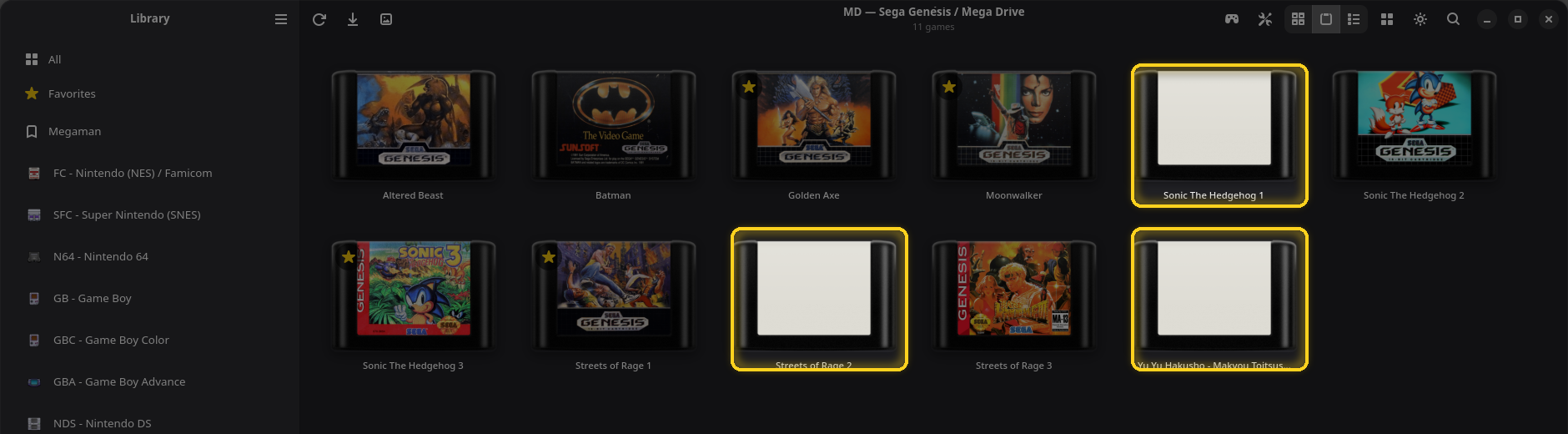
When no label was found, the cartridge shows a blank sticker; when no cover was found, the cover view shows a Search artwork… button on the empty card. To list only those games, turn on Only without artwork in the layout menu.
The artwork items of a game
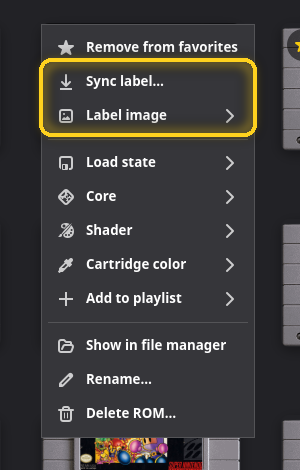
Right-click a game, or click its ⋮. The artwork items act on the label in the cartridge view and on the cover everywhere else, and their names change to match:
- Sync label… / Sync cover… fetches this game's art right away. Unlike the library sync, it replaces the art the game already has.
- Label image ▸ / Cover image ▸ holds the other three.
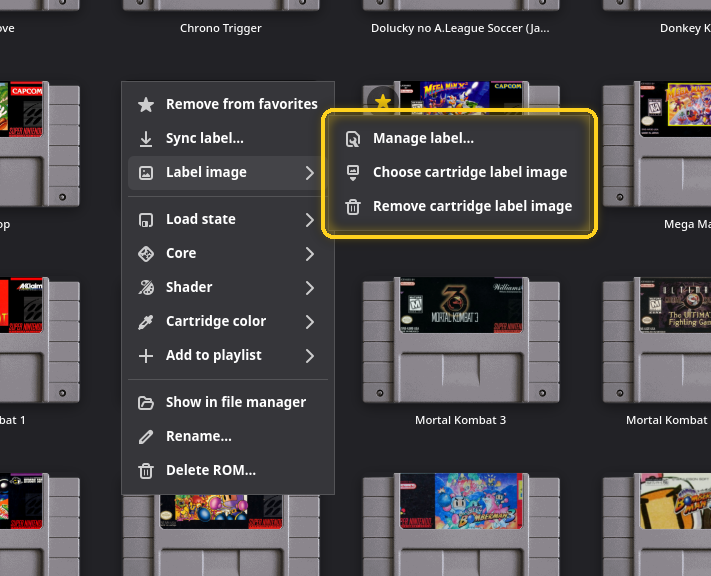
- Manage label… opens the artwork manager, below.
- Choose cartridge label image uses an image file from your computer as is.
- Remove cartridge label image deletes the art the game has now. It only appears when there is something to remove.
The artwork manager
The manager opens from Manage cover… / Manage label…, or from the Search artwork… button on an empty card. It has three tabs.
Cover and Label
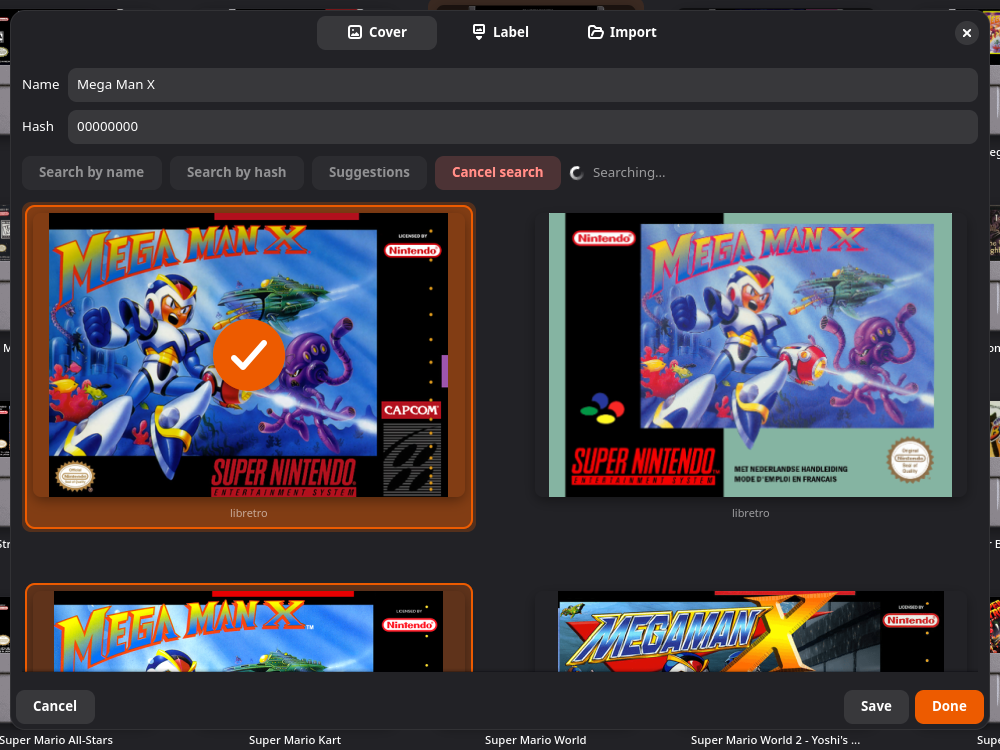
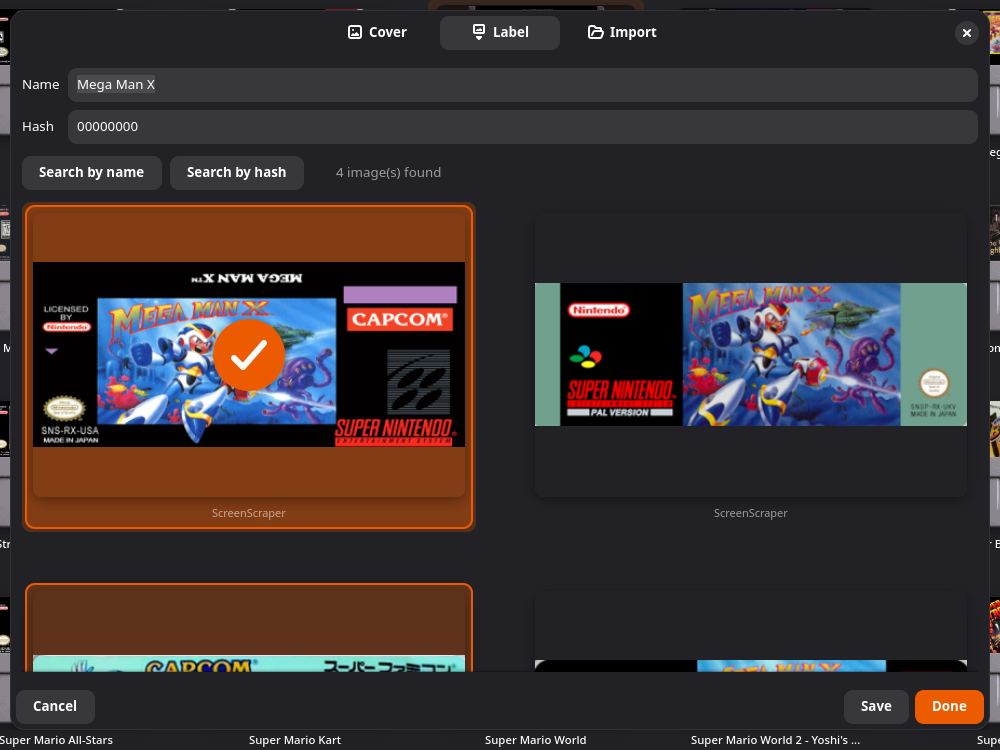
- Name is the title used for the search. Edit it if the file name is not the game's real name.
- Hash is the file's fingerprint, worked out for you.
- Search by name and Search by hash query the providers. A hash search is exact; a name search is more forgiving.
- Suggestions (Cover tab) proposes close titles from the game-name database, ranked by how similar they are, when the name does not match anything as written.
Click a result to pick it; it gets a check mark. Save applies it and keeps the window open; Done applies it and closes; Cancel closes without changing anything. The Label tab only exists for consoles with a cartridge view.
Import
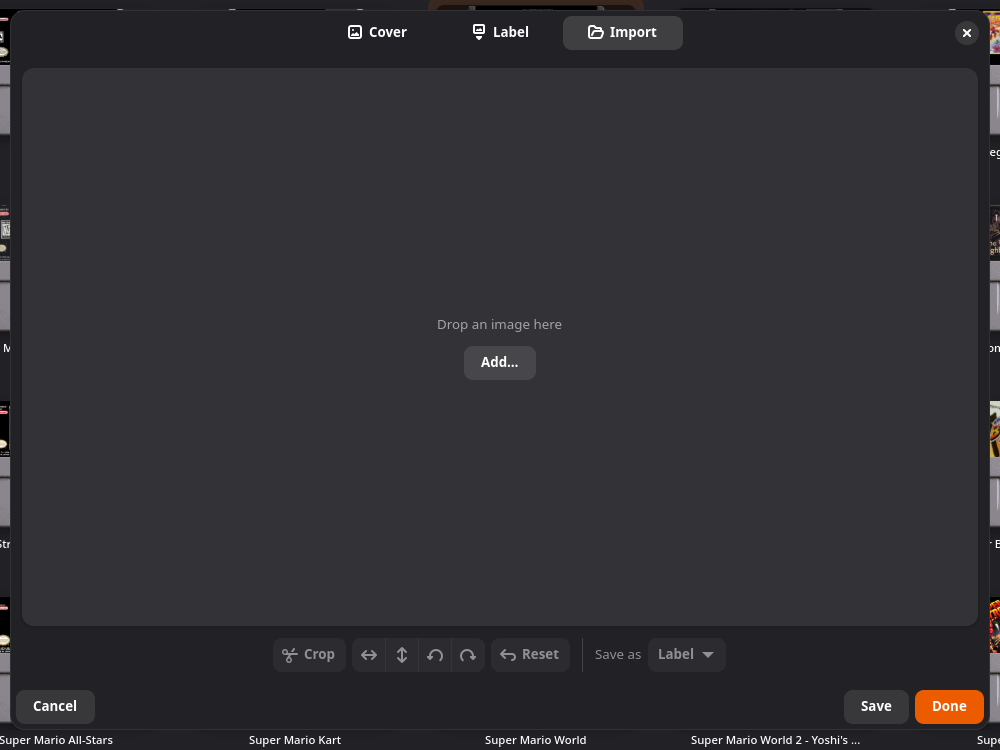
Drop an image onto the tab, or click Add… to pick one. Then you can Crop it, flip it, rotate it, or Reset your edits, and choose under Save as whether it becomes the Cover or the Label.
Cartridge colors
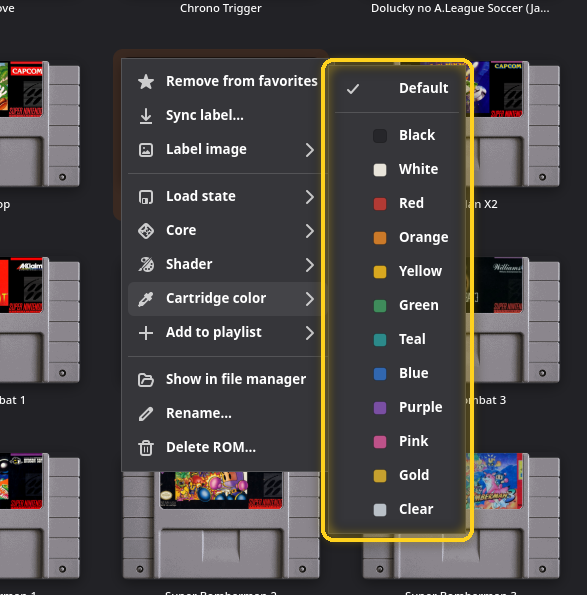
In the cartridge view, Cartridge color ▸ paints the shell of one game's cartridge: Default, or Black, White, Red, Orange, Yellow, Green, Teal, Blue, Purple, Pink, Gold or Clear. Handy for the games that came on a colored cartridge, like the red Pokémon FireRed.
Views
Cover, cartridge and list
The three linked buttons in the header switch how the page shows its games.
The layout menu
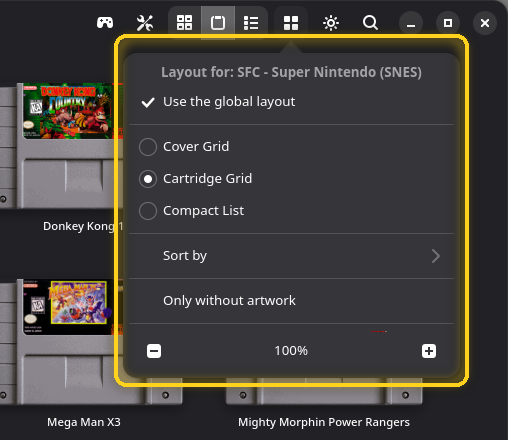
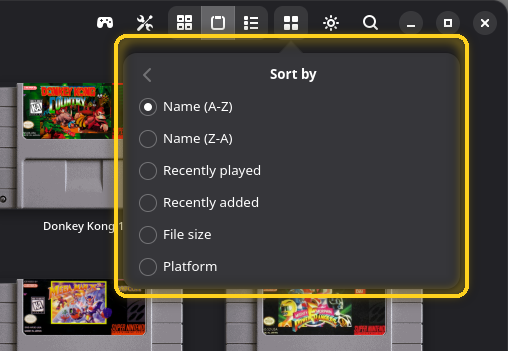
The ▦ View mode button opens the layout of the page on screen:
- Use the global layout: when ticked, this page follows the layout shared by every page that has not got its own. Change anything below while it is unticked and the page keeps its own layout.
- The three views.
- Sort by: Name (A-Z), Name (Z-A), Recently played, Recently added, File size and, on pages that mix consoles, Platform.
- Only without artwork: shows only the games still missing art. It lasts until you close OpenEmux.
- The − / + buttons set the thumbnail size, from 50% to 200%. Ctrl++, Ctrl+− and Ctrl+0 do the same.
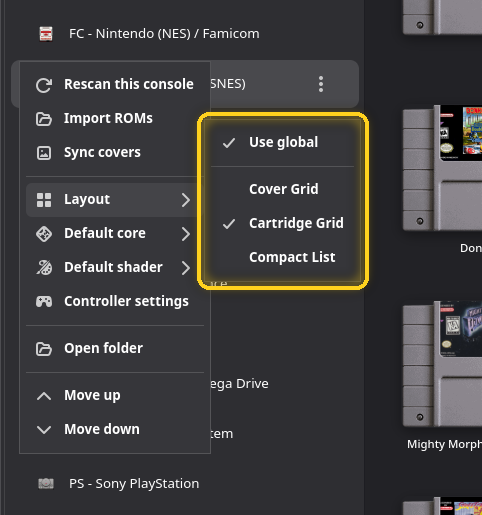
A console's menu in the sidebar has the same choice under Layout ▸, so each console can keep its own view. Playlists have it too.
All and grouped pages
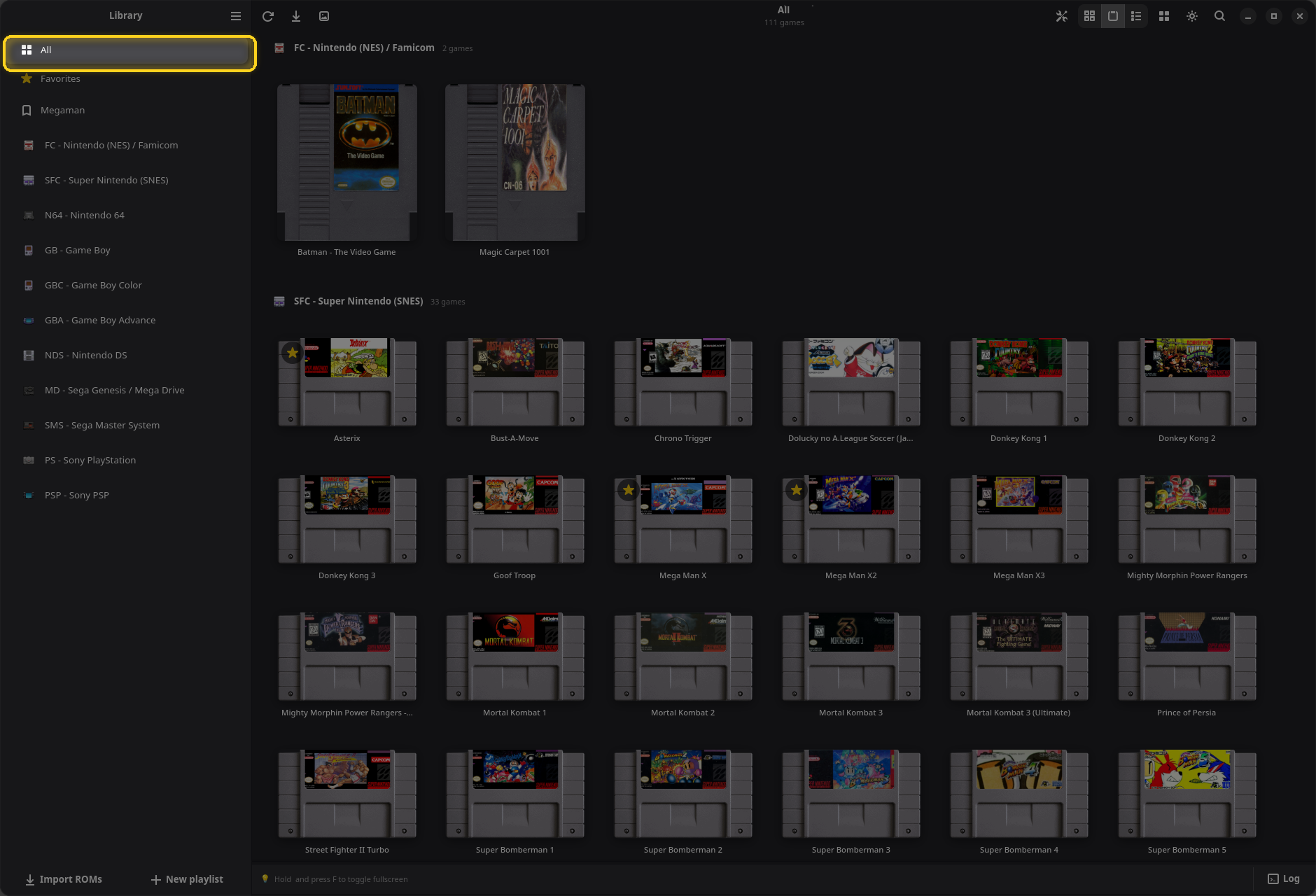
All, Favorites and playlists mix consoles, so they are grouped: each group has a header with the console's icon, name and number of games. Groups follow the console order you set in the sidebar or in Settings → Library.
Search
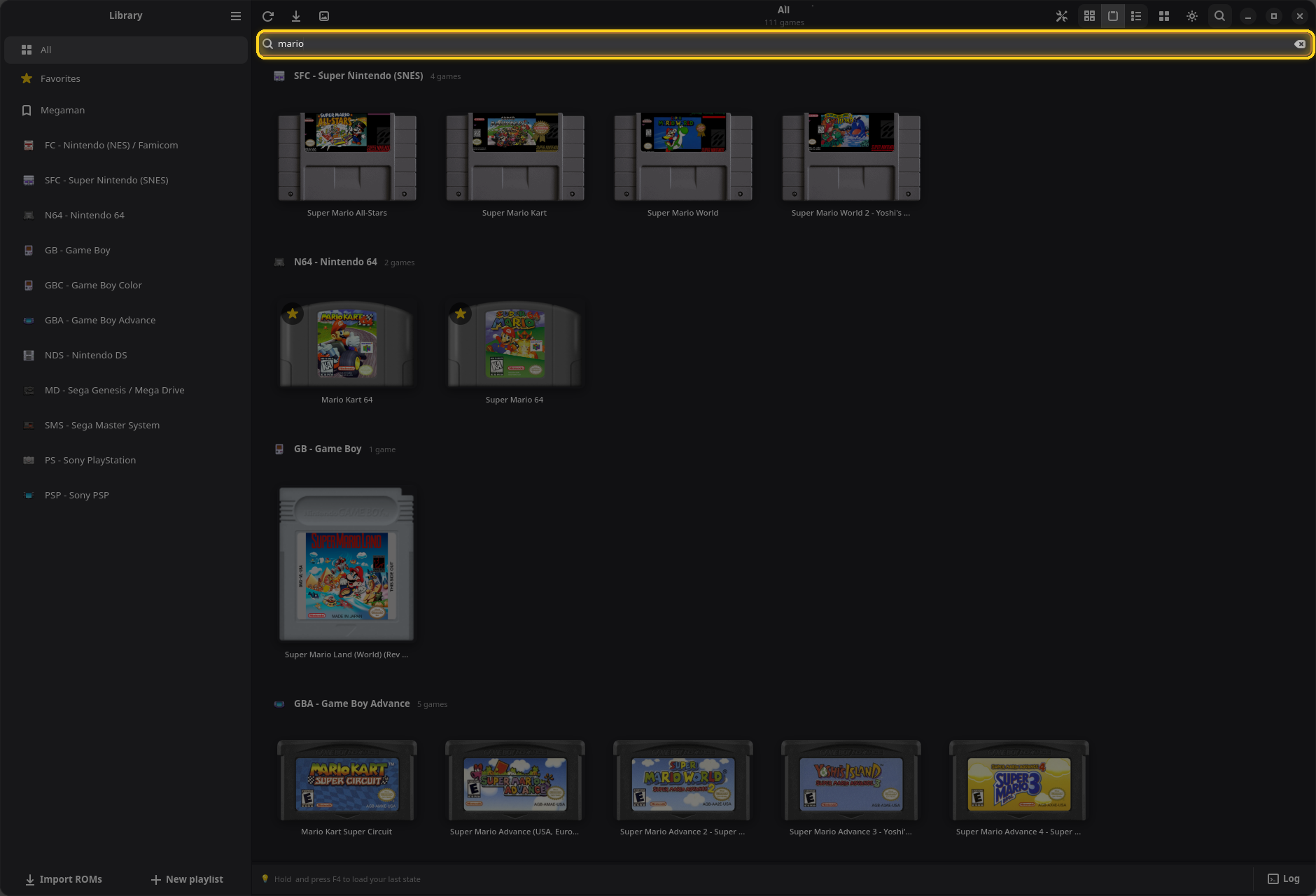
Click 🔍, press Ctrl+F, or just start typing. The search filters the page on screen, so search from All to look through the whole library. Esc closes it.
Selecting several games

A single click starts a game, so selecting works with modifiers: Ctrl-click adds a game, Shift-click adds a range, dragging on empty space draws a selection box, and Ctrl+A selects the whole page. In the list view, use the checkboxes. A bar appears at the bottom with Select all, Sync covers and Delete; the game menu's Add to playlist then acts on the whole selection. Click empty space, or ×, to clear it.
Playlists
A playlist is a list of games you put together yourself, from any console: a series, the games you play with friends, the ones you are going through now. Adding a game to a playlist does not copy or move it.
Creating a playlist
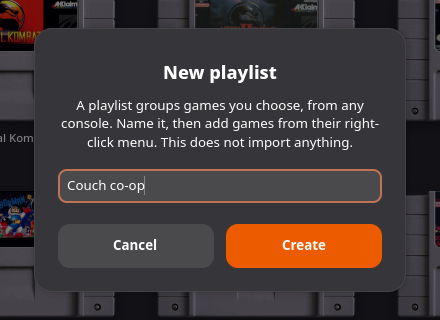
Click New playlist at the foot of the sidebar (or right-click empty space in the sidebar), type a name and click Create. The playlist appears in the sidebar, between Favorites and the consoles.
Adding and removing games
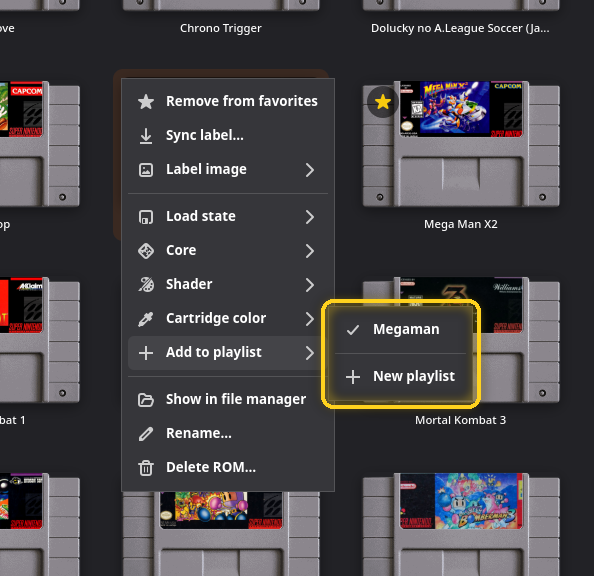
In a game's menu, Add to playlist ▸ lists your playlists. A check mark means the game is already in it, and clicking a checked playlist takes the game out. New playlist at the bottom creates one with this game already in it. With several games selected, they all go in at once.
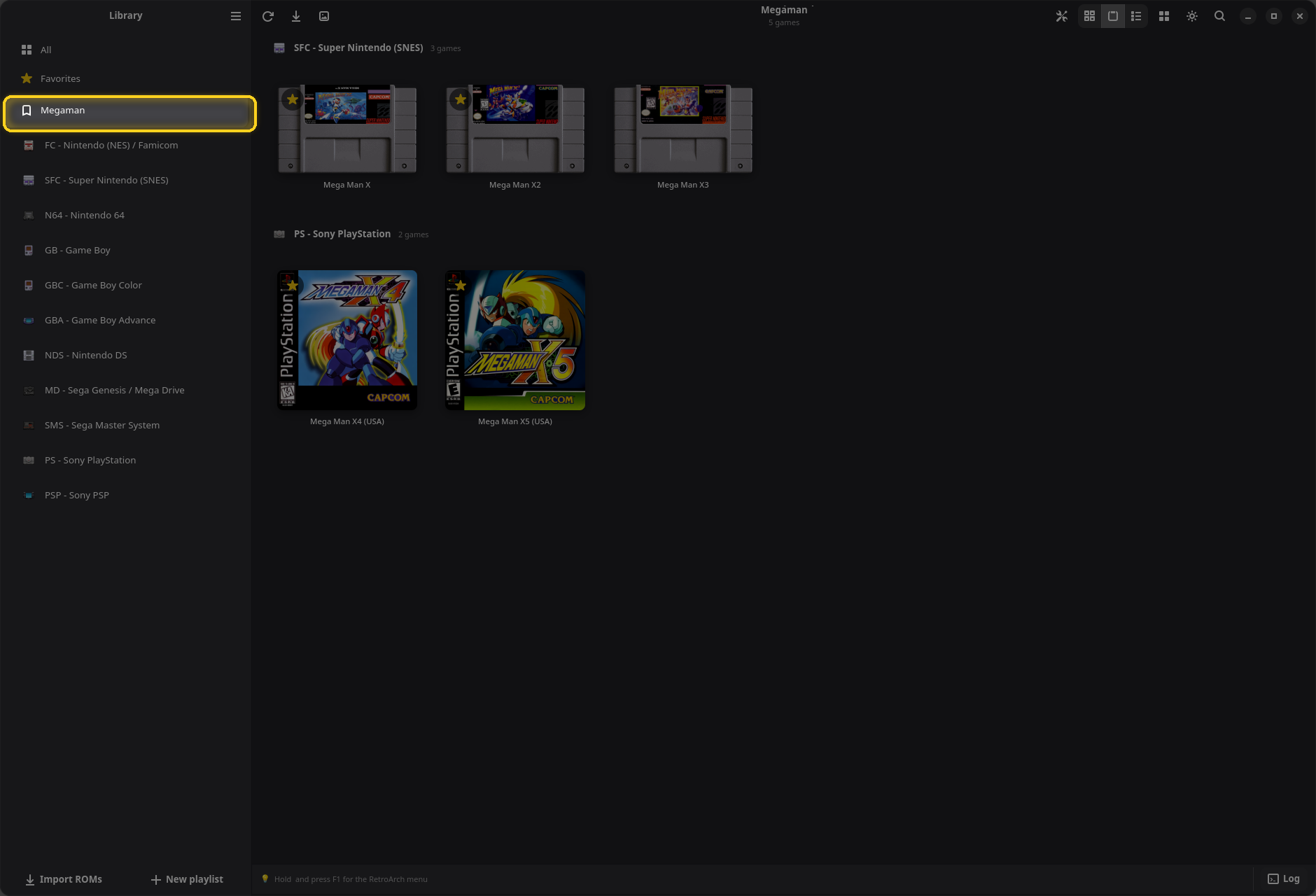
Inside a playlist, games are grouped by console, and the game menu has an extra item, Remove from this playlist.
Renaming and deleting
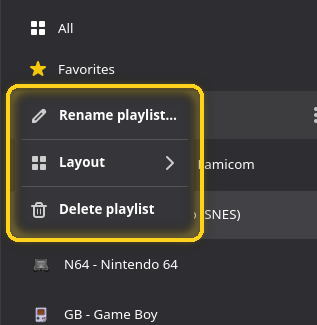
Right-click the playlist in the sidebar, or click its ⋮: Rename playlist…, Layout ▸ and Delete playlist. Deleting a playlist never deletes its games.
Favorites
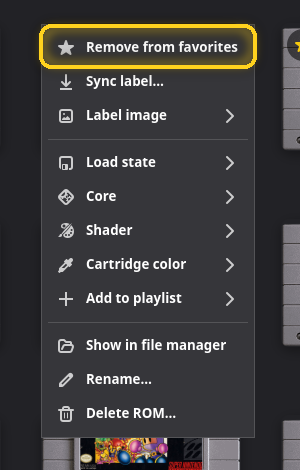
To star a game, click the star on its card, choose Add to favorites in its menu, or press Ctrl+D (Ⓨ on a gamepad). The same gestures take the star away.
A starred game keeps its star badge on every page.
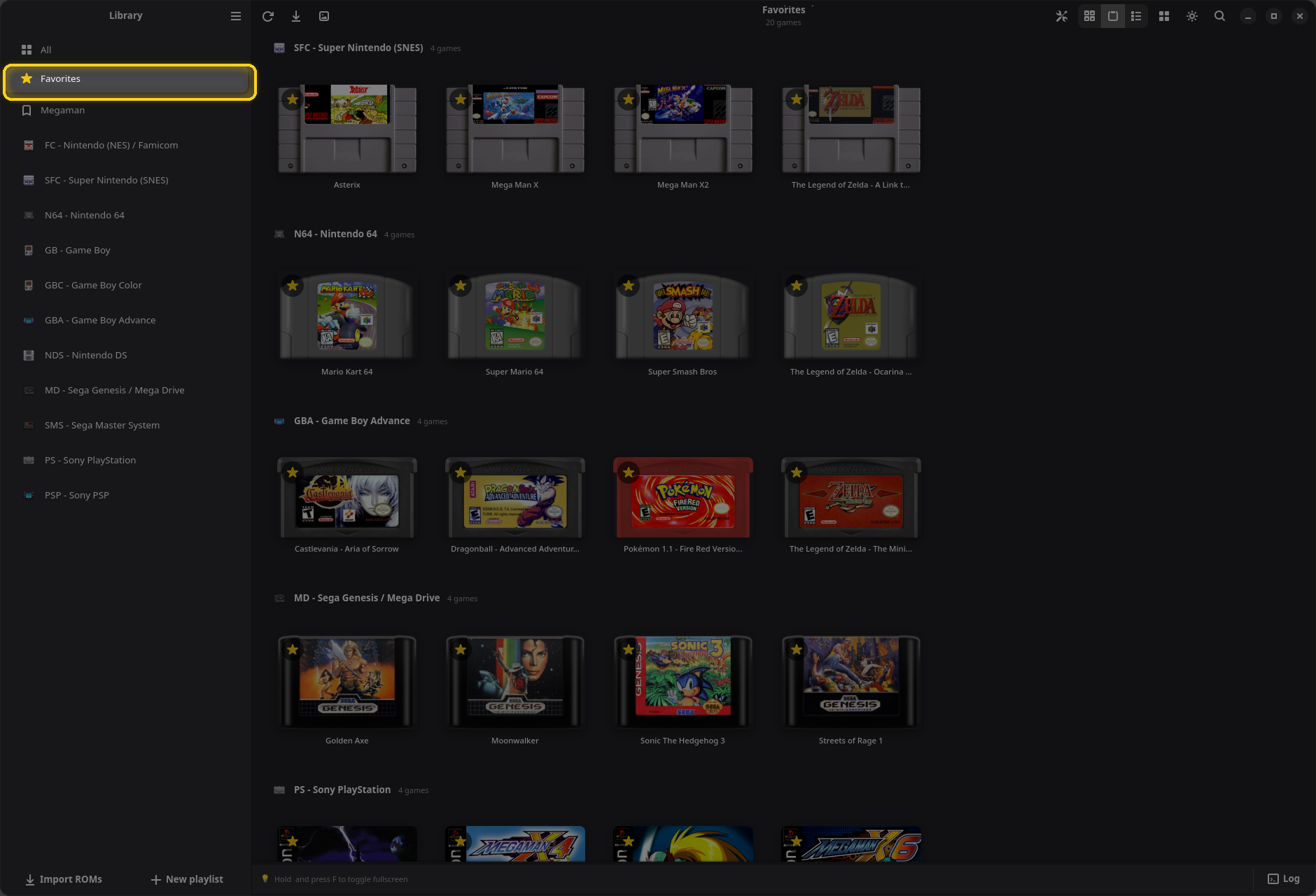
The Favorites page gathers them, grouped by console. Its row shows up in the sidebar once you have starred a game, and OpenEmux opens on it when there is nothing else to come back to.
Cores and shaders
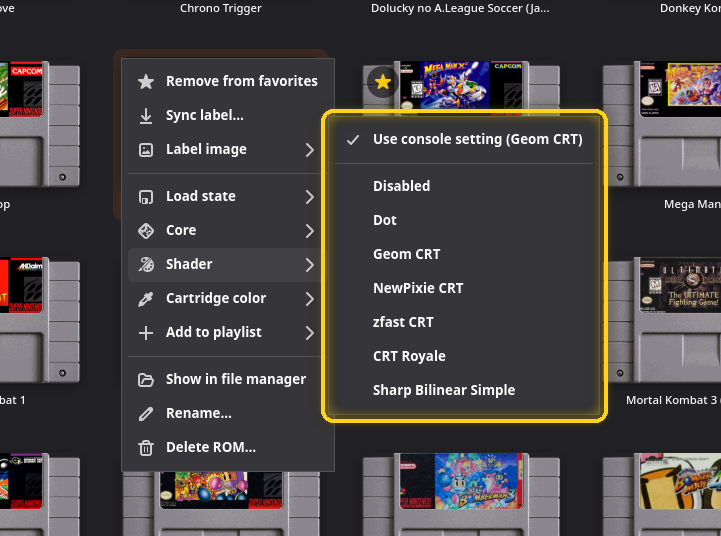
A core is the emulator RetroArch runs for a console: Super Nintendo has Snes9x, bsnes, Mesen-S and others. Each console starts on a sensible default, shown as Automatic (…). A shader changes how the picture is drawn: a CRT shader brings back the scanlines and curvature of an old TV, and Disabled shows the raw pixels.
Both can be set for a whole console and, on top of that, for a single game.
For one game
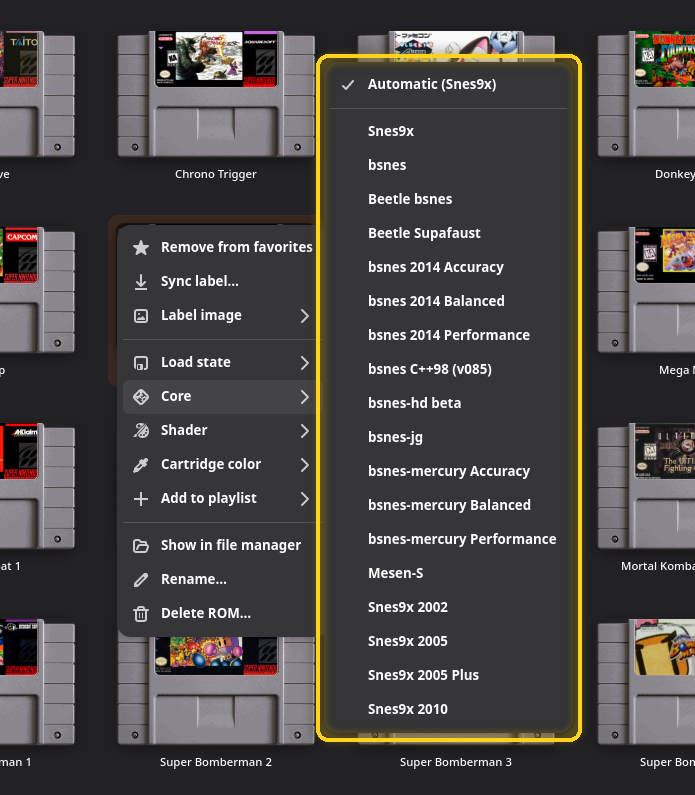
- Core ▸ lists every installed core for the console. The first item, Automatic (…), follows the console's setting. If the core you pick needs BIOS files you do not have, OpenEmux tells you which ones.
- Shader ▸ starts with Use console setting (…), then Disabled, Dot, Geom CRT, NewPixie CRT, zfast CRT, CRT Royale and Sharp Bilinear Simple. Turn on Show all shaders in Settings → Video to list every shader RetroArch has.
For a whole console
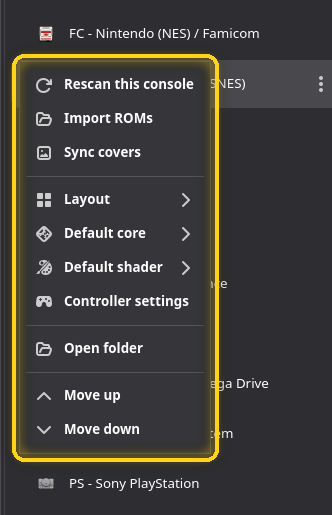
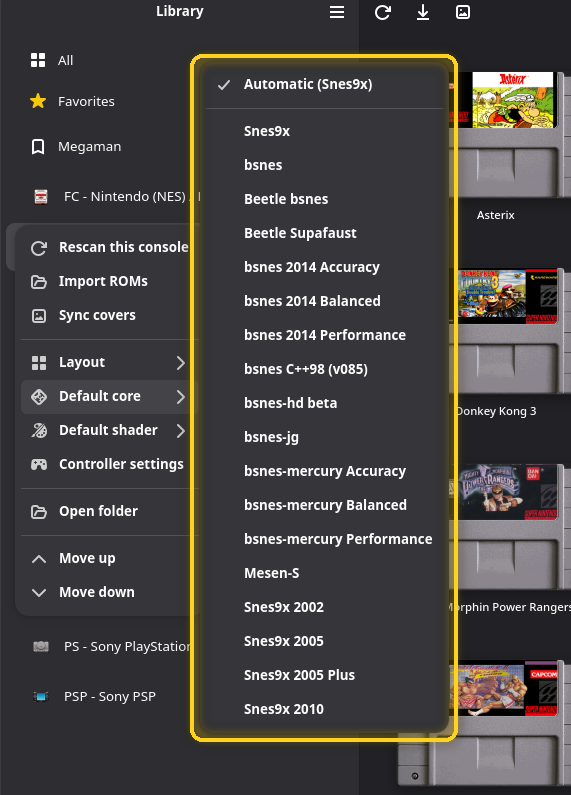
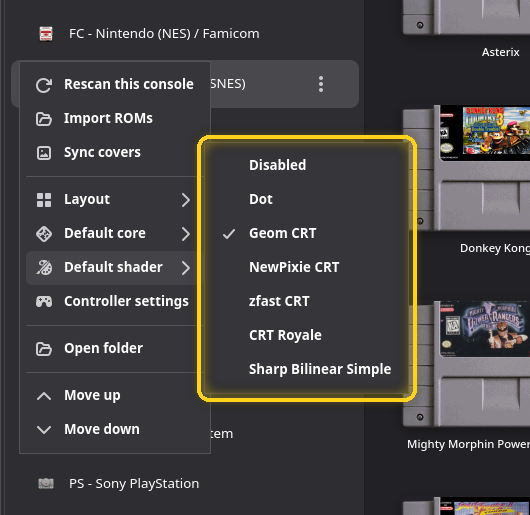
Right-click a console in the sidebar. Default core ▸ and Default shader ▸ set what every game of that console uses unless the game has its own choice. They are the same settings as Settings → Cores and Settings → Video → Shaders per Console. Out of the box, handhelds (Game Boy, Game Boy Color, Game Boy Advance, DS) use Dot and everything else Geom CRT.
Every context menu
A game's menu
| Item | What it does |
|---|---|
| Add to favorites / Remove from favorites | Stars or unstars the game. |
| Sync cover… / Sync label… | Downloads this game's art again, replacing the current one. |
| Cover image ▸ / Label image ▸ | Manage…, choose an image file, or remove the current art. |
| Load state ▸ | Starts the game from one of its ten save-state slots, each with its date. Empty slots are greyed out. |
| Core ▸ | The core for this game only. |
| Shader ▸ | The shader for this game only. |
| Cartridge color ▸ | The shell color in the cartridge view. |
| Add to playlist ▸ | Puts the game in a playlist, or takes it out. |
| Remove from this playlist | Only inside a playlist. |
| Show in file manager | Opens the folder with the ROM file selected. |
| Rename… | Renames the game and its file, keeping the extension. F2. |
| Delete ROM… | After asking, moves the file to the trash. Delete. |
A console's menu
| Item | What it does |
|---|---|
| Rescan this console | Reads the console's folder again. |
| Import ROMs | Opens the import picker. The extension still decides the console. |
| Sync covers | Downloads missing art for this console. |
| Layout ▸ | Use global, or a view of its own. |
| Default core ▸ | The core for the whole console. |
| Default shader ▸ | The shader for the whole console. |
| Controller settings | Opens Settings → Input with this console selected. |
| Open folder | Opens the console's folder in the file manager. |
| Move up / Move down | Changes the console's place in the sidebar. Ctrl+↑ / ↓, or drag the row. |
Settings
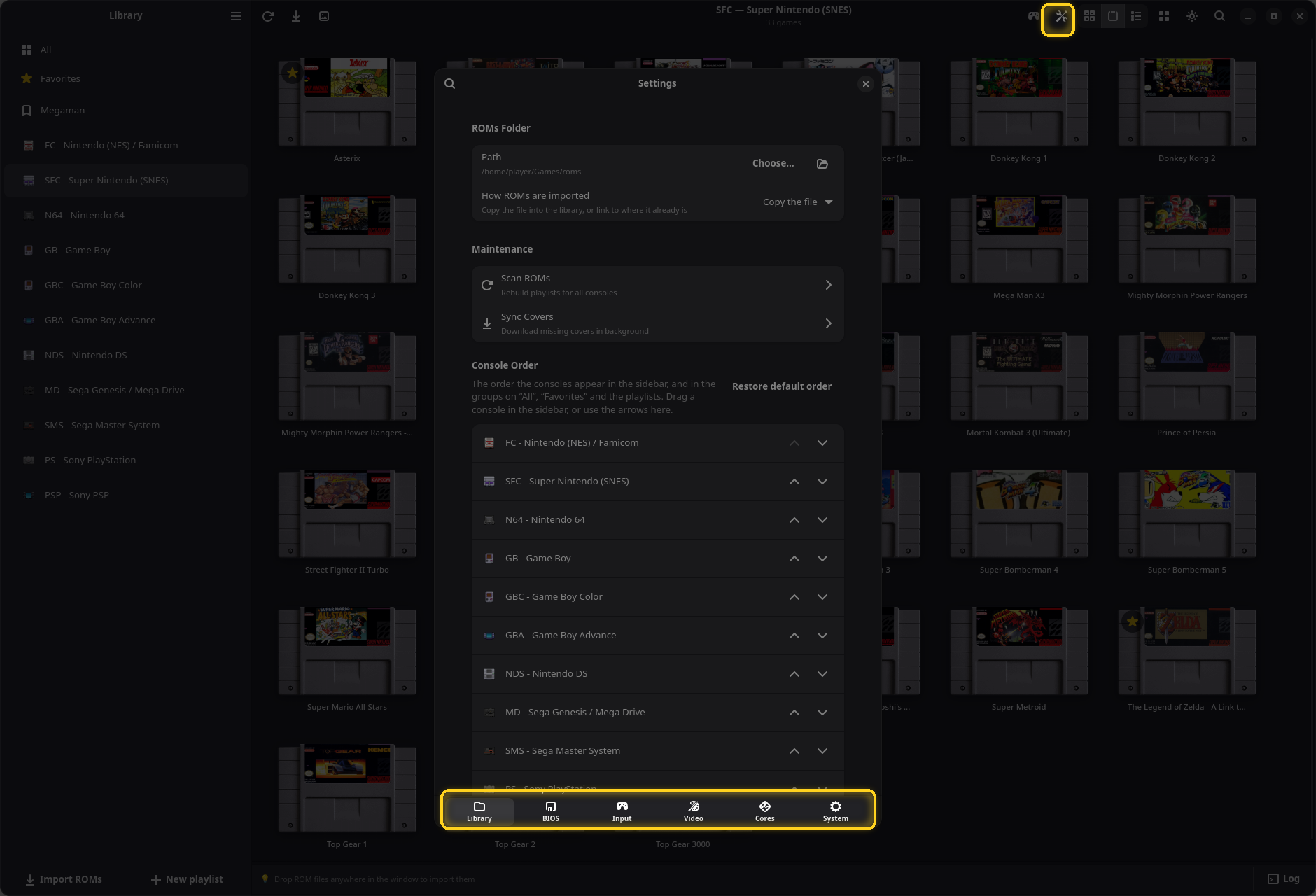
Open Settings with the 🛠 button in the header, from the main menu, or with Ctrl+,. The pages are along the bottom: Library, BIOS, Input, Video, Cores and System. The 🔍 at the top left searches every page. Changes take effect right away; there is nothing to save, except in the controls editor.
Library
ROMs Folder
Where the library lives and whether imports copy or link the files. See The ROMs folder.
Maintenance
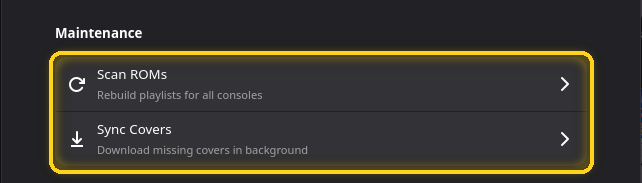
- Scan ROMs rebuilds the game lists from the folders. A dialog asks for the scope: all consoles, or one.
- Sync Covers downloads missing art in the background, for all consoles or one.
Console Order
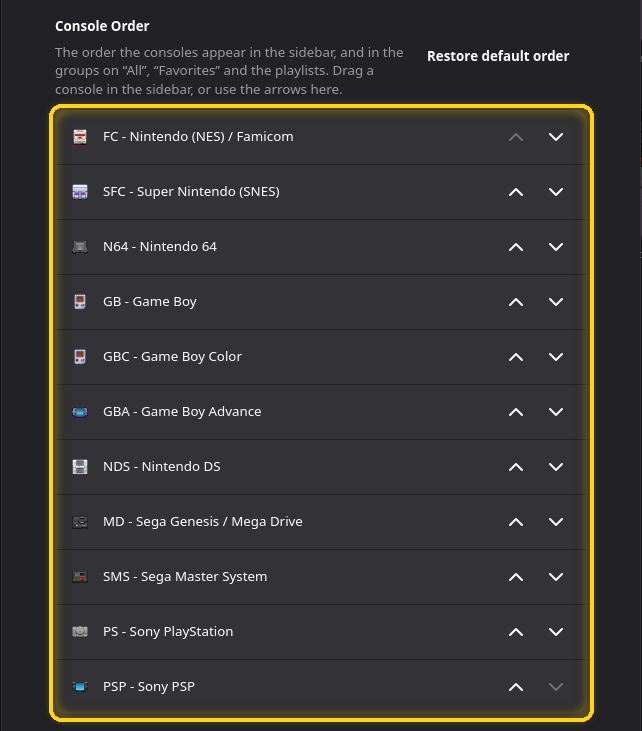
The order of the consoles in the sidebar and in the groups of All, Favorites and playlists. Use the arrows, or drag consoles in the sidebar. Restore default order undoes it. A console you ordered keeps its place even while it has no games.
Artwork Providers and ScreenScraper Account
See Where artwork comes from and ScreenScraper account.
BIOS
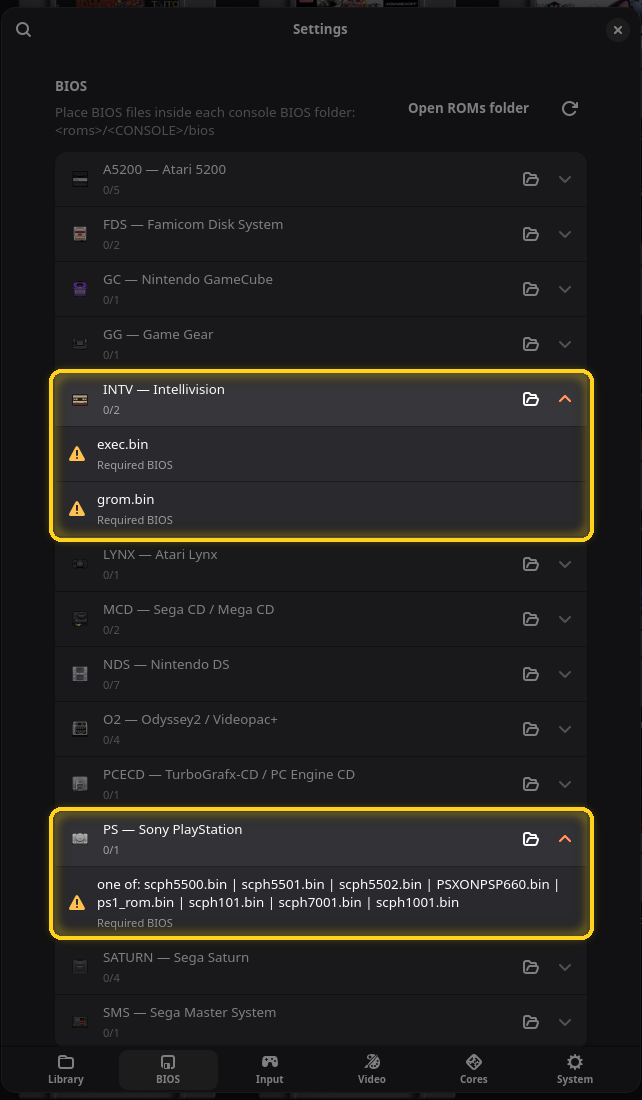
Some consoles need the firmware of the original machine, the BIOS, to run games. OpenEmux does not ship
any; you copy your own into <ROMs folder>/<CONSOLE>/bios, for example
~/games/roms/PS/bios/.
- Each console that uses BIOS files has a row showing how many it has out of how many it knows, like 0/1. The folder button opens that console's BIOS folder.
- Open a row to see each file, marked Required BIOS or Optional BIOS, with ⚠ while it is missing and ✓ once it is there. A line with one of: is satisfied by any of the files listed; PlayStation, for example, accepts several regional BIOS files.
- ⟳ at the top re-checks after you copy files in.
Input
This page edits the controls of one console at a time. A game started afterwards uses them; if that console's game is running when you save, it restarts with your progress kept.
Controller
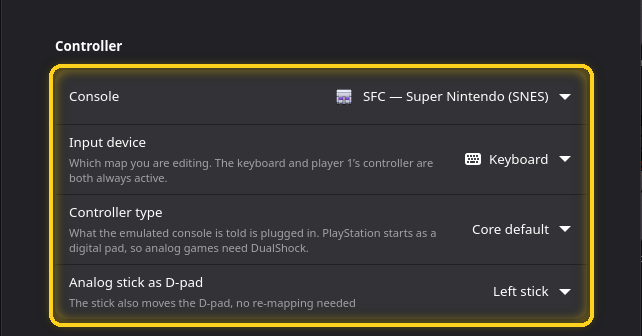
- Console: which console you are editing. It starts on the console on screen.
- Input device: Keyboard, or Gamepad Port 1 to 4. The keyboard and player 1's controller work at the same time. For ports 2 to 4, an Enable this port switch sends that player's mapping to RetroArch.
- Controller type: what the emulated console is told is plugged in. For example, a PlayStation can get a DualShock (needed by games with analog control), a Mega Drive a 6-button pad (for Street Fighter II), a Super Nintendo a mouse or a multitap. Only shown for consoles that have options.
- Analog stick as D-pad: lets the stick move the D-pad without remapping anything. The (forced) options apply it even when the core would not.
- D-pad also moves the analog stick: the other way round, for 3D consoles such as the N64 or the PlayStation.
Stick and Feedback
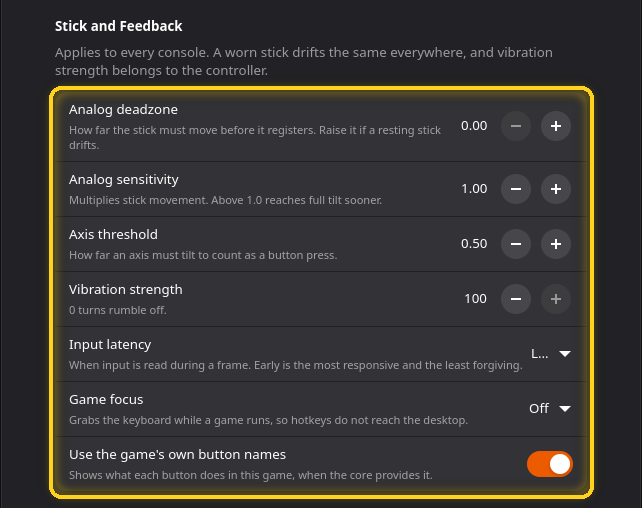
These apply to every console.
- Analog deadzone: how far the stick has to move before it counts. Raise it if a stick that is not being touched makes the character drift.
- Analog sensitivity: multiplies stick movement. 1.0 is normal.
- Axis threshold: how far a stick or trigger must go to count as a button press.
- Vibration strength: rumble, from 0 (off) to 100.
- Input latency: when input is read during a frame. Early is the most responsive and the least forgiving on a slow machine; Late is the default.
- Game focus: grabs the keyboard while a game runs, so RetroArch's hotkeys do not steal keys a computer game needs. Off, when the menu closes, or when a game starts.
- Use the game's own button names: shows each button's in-game action in the RetroArch menu, when the core provides it.
Turbo
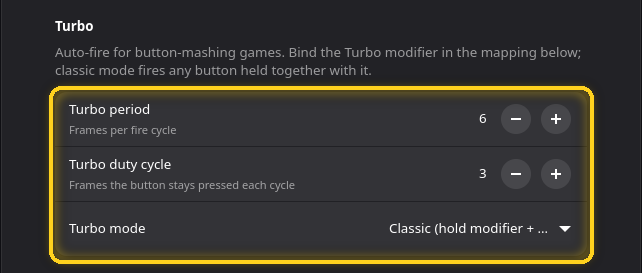
Auto-fire for games that want a button mashed. Bind the Turbo (modifier) key in Game Controls below.
- Turbo period: frames per fire cycle. Lower is faster.
- Turbo duty cycle: frames the button stays pressed in each cycle.
- Turbo mode: Classic fires any button held together with the modifier; the two Single button modes fire one chosen button, toggled or held.
Game Controls
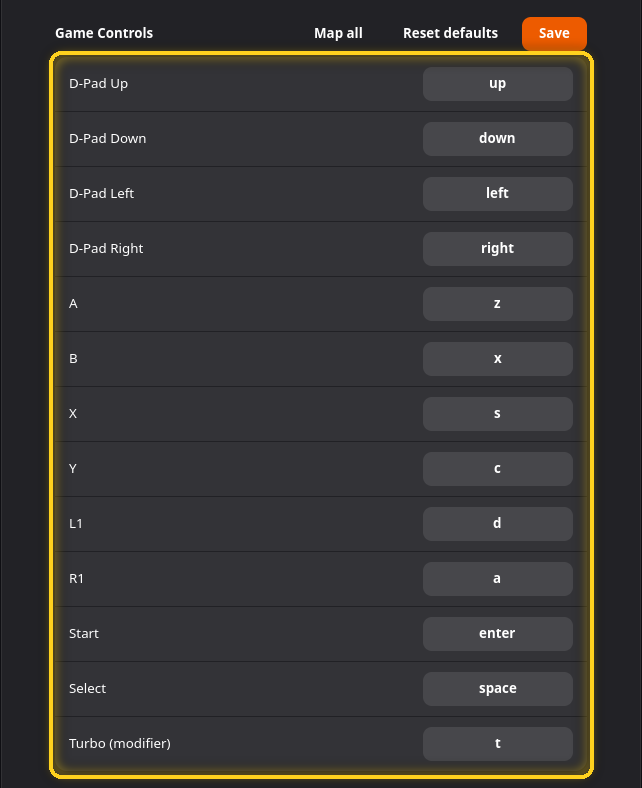
One row per button of the selected console. Click a binding and press the key or button you want; it shows Press key... while waiting, and Esc clears it. If that key was used elsewhere, OpenEmux frees it there and tells you.
- Map all walks through every button in turn.
- Reset defaults brings back the default mapping of this console.
- Save keeps your changes. Remember it; this is the one place in Settings that needs saving.
System Hotkeys
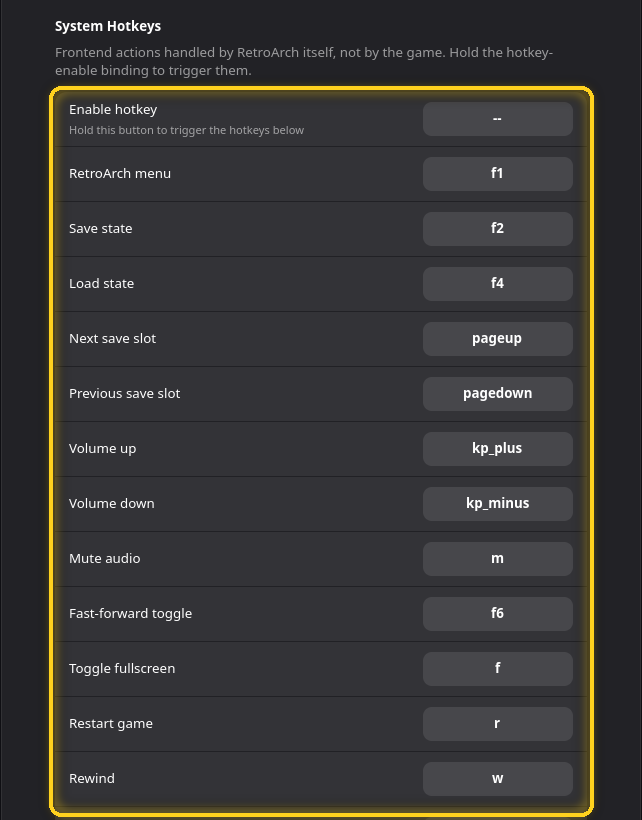
Keys for RetroArch itself rather than for the game: menu, save and load state, save slots, volume, mute, fast-forward, fullscreen, restart, rewind, pause, slow motion, screenshot, game focus and disk swapping. Enable hotkey is a button you hold to make the others work; on the keyboard it is empty by default, so the hotkeys work on their own. The defaults are in While playing.
Video
Appearance
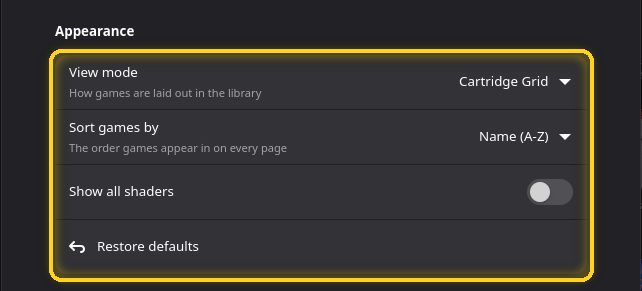
- View mode and Sort games by: the global layout. See The layout menu.
- Show all shaders: lists every shader RetroArch has in the shader menus, instead of the short list.
- Restore defaults: puts every console back on its default shader.
Shaders per Console
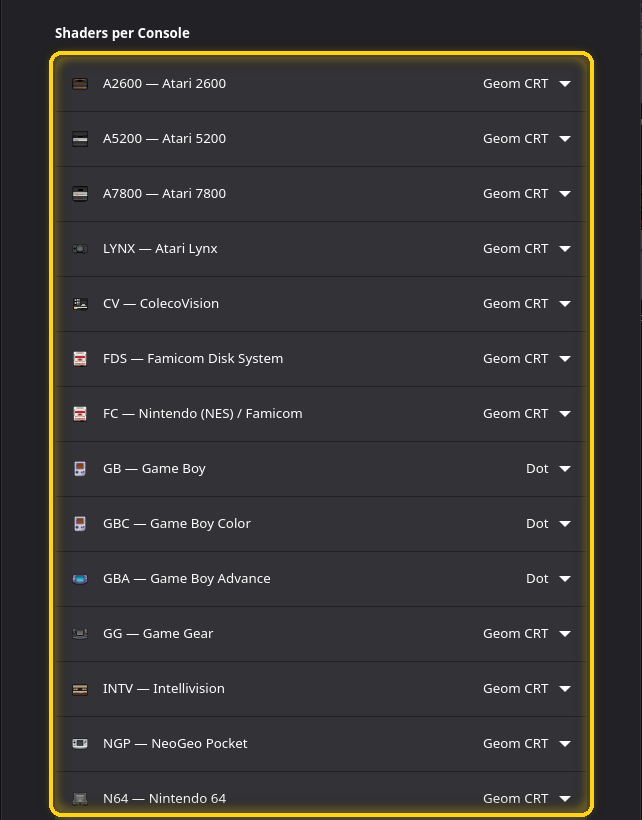
One row per console with its default shader. Same setting as Default shader in the console's menu.
Cores
Cores per Console
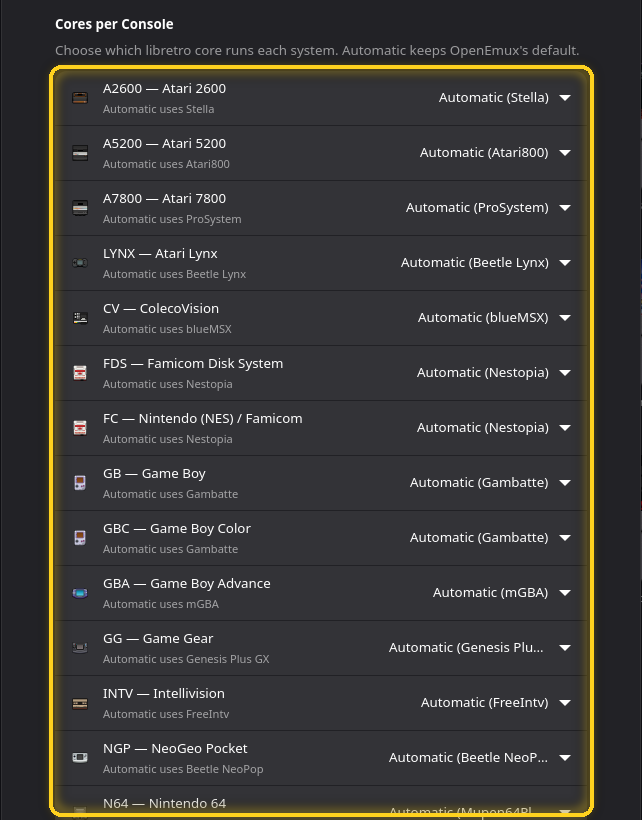
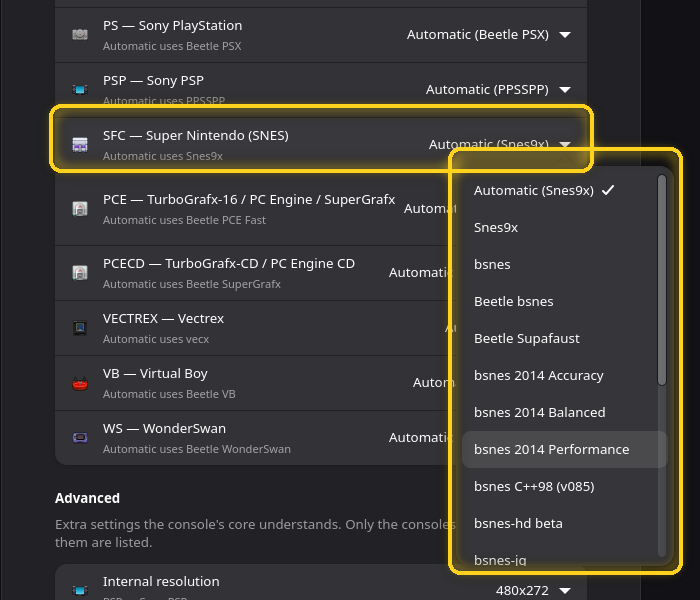
One row per console. The subtitle says which core Automatic uses; open the list to choose another installed core. Same setting as Default core in the console's menu. A console with no core yet shows No core installed for this system until the background download gets to it.
Advanced
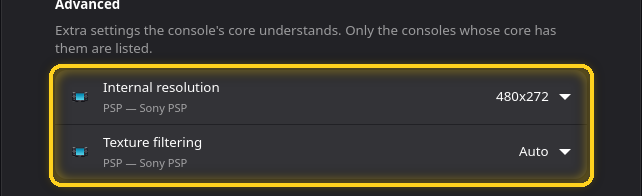
Extra options that some cores understand, listed only for the consoles whose current core has them. For the PSP and PlayStation that means the internal resolution (render 3D games above their native resolution for a sharper picture, at a cost in speed), the graphics API and texture filtering.
System
Language

The interface language: English, Deutsch, 日本語, Français, 简体中文, Português (Brasil), Español or தமிழ். Settings reopens in the new language.
Interface
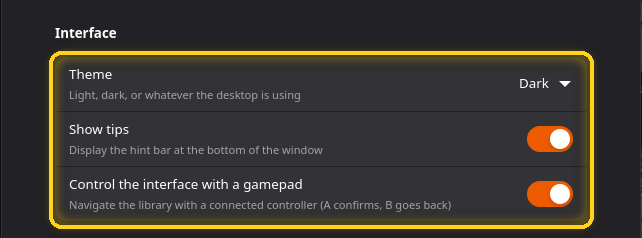
- Theme: System (follows your desktop), Light or Dark.
- Show tips: the rotating tip at the bottom of the window.
- Control the interface with a gamepad: move around the library with a controller. Ⓐ confirms, Ⓑ goes back.
Getting started
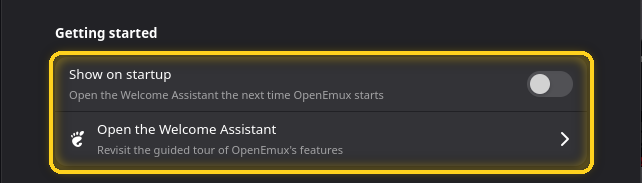
Whether the welcome tour opens at startup, and a button to open it now.
Troubleshooting
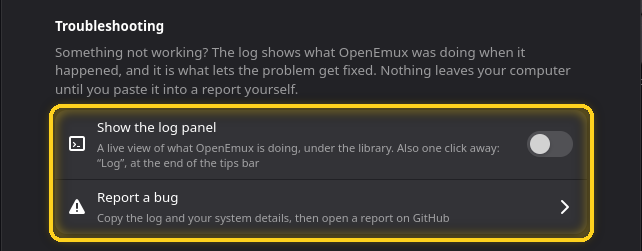
Show the log panel keeps the log open under the library; Report a bug copies the log and your system details and opens a report on GitHub. See When something goes wrong.
Saves
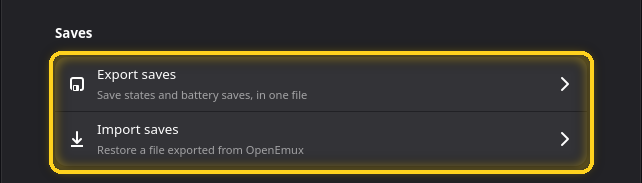
Export saves packs every save state and battery save (the in-game saves of
cartridges) into one .zip. Import saves restores such a file, for
example on a new computer; saves you already have are left alone.
RetroAchievements
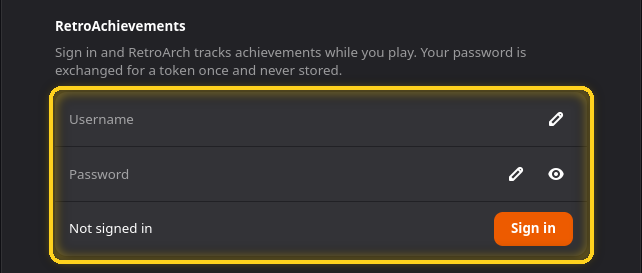
Sign in with your RetroAchievements account to unlock achievements while you play. Your password is exchanged for a token once and is not stored. Once signed in, you can turn tracking on and choose Hardcore mode, which disables save states, rewind and fast-forward.
Initial Setup
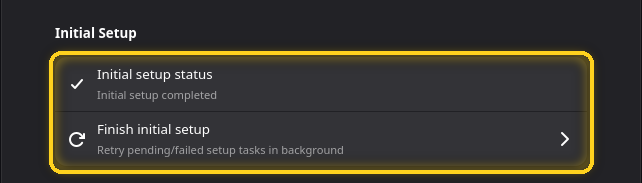
Shows whether the first-launch setup finished. If a step failed, for example because you were offline, Finish initial setup retries it in the background.
Shortcuts and hotkeys
In the library
| Keys | Action |
|---|---|
| Ctrl+F | Search |
| Ctrl+, | Settings |
| Ctrl+? | Keyboard shortcuts |
| Ctrl+Q | Quit |
| F5 or Ctrl+R | Rescan the current page |
| Ctrl+O | Import ROMs |
| Ctrl+Shift+S | Sync cover art |
| Tab or F6 | Switch between the sidebar and the games |
| → / Backspace | From the console list into the games, and back |
| Ctrl++ / − / 0 | Larger, smaller, default thumbnails |
| Enter or Space | Play the focused game |
| Menu or Shift+F10 | The focused game's menu |
| Ctrl+D | Toggle favorite |
| F2 | Rename the game |
| Delete | Delete the game |
| Ctrl+A / Ctrl+Shift+A | Select all / clear the selection |
| Shift+arrows, Ctrl+Space | Extend the selection, toggle the focused game |
| Ctrl+↑ / ↓ (sidebar) | Move the console up or down |
| Esc | Clear the selection, then go back to the sidebar |
While playing
The default keyboard keys. Change them in Settings → Input → System Hotkeys.
| Key | Action | Key | Action |
|---|---|---|---|
| F1 | RetroArch menu | P | Pause |
| F2 | Save state | W | Rewind |
| F4 | Load state | R | Restart |
| PgUp / PgDn | Next / previous save slot | O | Slow motion |
| F6 | Fast-forward on/off | H | Fast-forward while held |
| F | Fullscreen | F8 | Screenshot |
| Keypad + / − | Volume | M | Mute |
| G | Game focus | T | Turbo |
| F9 | Eject disk | N / B | Next / previous disk |
Default game keys: arrows for the D-pad, Z A, X B, S X, C Y, D / A L1 / R1, E / Q L2 / R2, Enter Start, Space Select, and I J K L for the analog stick.
Games open in a window with a control bar at the bottom: close, menu, pause, reset, slow motion, fast-forward, turbo, save and load state, volume, fullscreen, and a button to hide the bar.
With a gamepad
In a game, Select is the hotkey button: Select+Start opens the RetroArch menu, Select+X saves a state, Select+Y loads it, Select+L1 toggles fullscreen and Select+R1 fast-forwards.
In the library, with Control the interface with a gamepad on: Ⓐ plays, Ⓑ goes back, Ⓧ opens the game's menu, Ⓨ toggles favorite, L1 / R1 change console, and holding Ⓐ starts selecting games. The tips bar shows the buttons as you go.
When something goes wrong
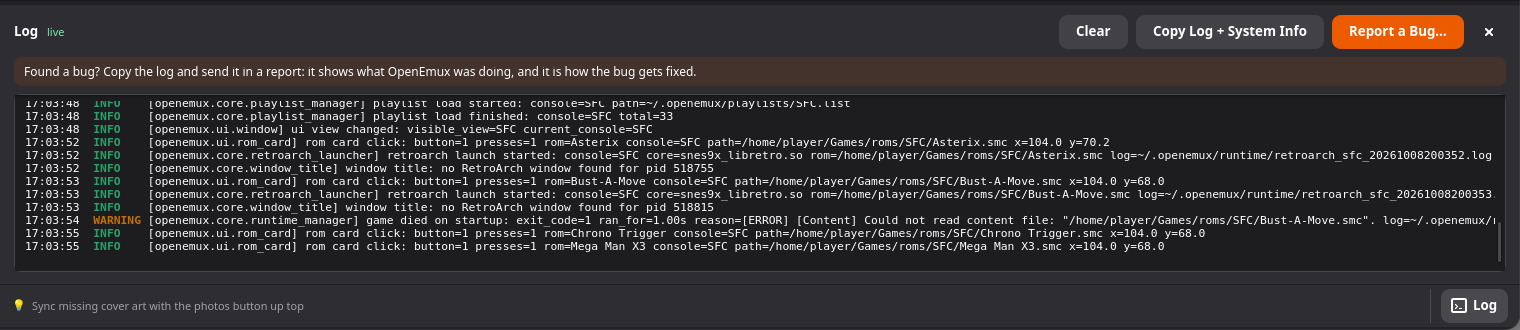
Click Log at the bottom right. The panel shows what OpenEmux is doing as it happens: scans, downloads, the exact command each game was started with, and why a game closed straight away. Copy Log + System Info puts it on the clipboard, and Report a Bug… walks you through opening a report on GitHub with it pasted in.
A few common cases:
- A game closes as soon as it opens. The message usually says why. Check BIOS for consoles that need one, and try another core from the game's Core ▸ menu.
- A game has no art. Try Sync label… / Sync cover…, or search by another name in the artwork manager.
- The controller does nothing. Check it in Settings → Input
with Input device on its port. On Linux, your user may need to be in the
inputgroup.
Questions and ideas are welcome on r/OpenEmux, and bugs on GitHub.